
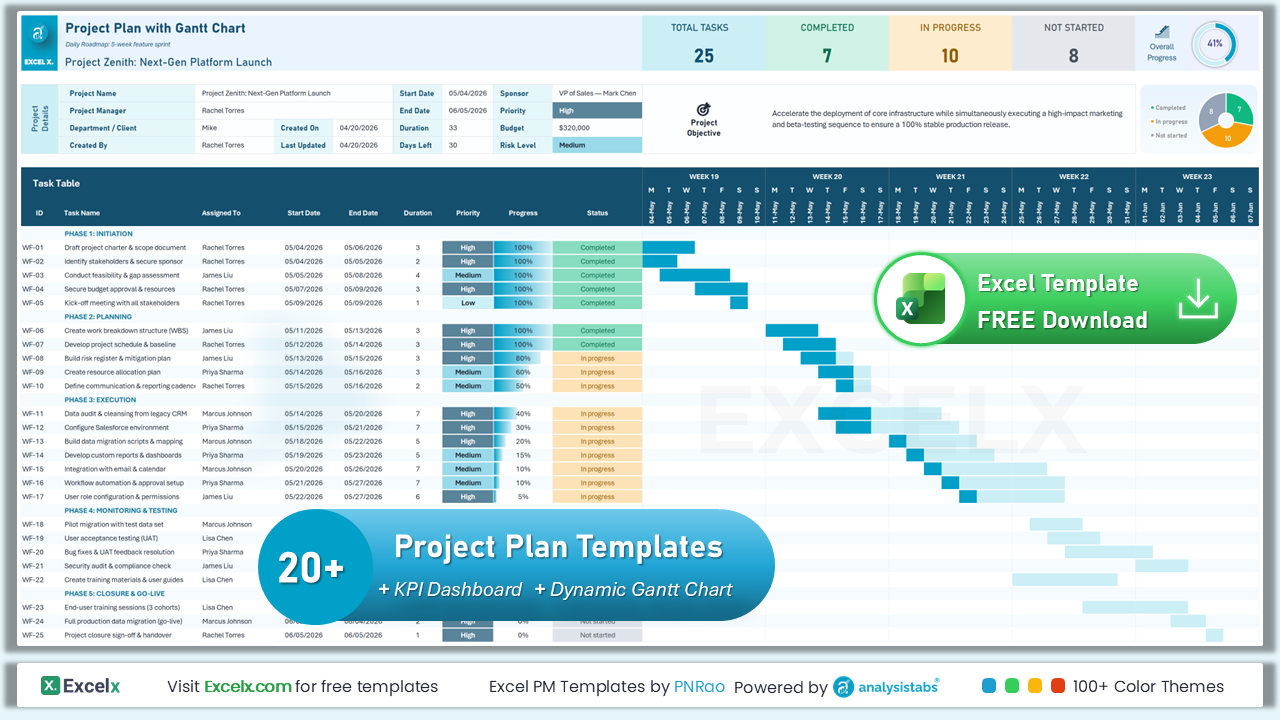
- ⬇ Free Download
- 📋 Core (6)
- 🔀 Methodology (4)
- 🏢 Industry (4)
- ⚡ Advanced (4)
- 📊 Executive (2)
- 🎯 Complete (2)
- 📊 Compare
- 📖 What is?
- ❓ FAQ
- 💬 Comments
Download free Excel project plan templates with built-in Gantt charts, task tracking, timeline management, resource allocation, and progress monitoring. Includes standard, agile, simple, and software development plans. Works in Excel 2016–365 and Google Sheets.
Free Excel Project Plan Templates: Download Now
Choose from 22 free project plan templates on this page — across 6 categories including core, methodology, industry, advanced, executive, and complete solutions.
- Built-in Gantt Chart: Visualize your entire project timeline with tasks, durations, and completion status updated automatically.
- Task & Resource Tracking: Assign tasks to team members, set start and end dates, and monitor progress from one central view.
- KPI Dashboard: Auto-calculated totals for completed, in-progress, and not-started tasks with overall progress percentage.
Core Project Plan Templates
The essential templates every project manager needs — from simple task lists to detailed WBS plans with Gantt charts, KPI dashboards, and progress tracking.
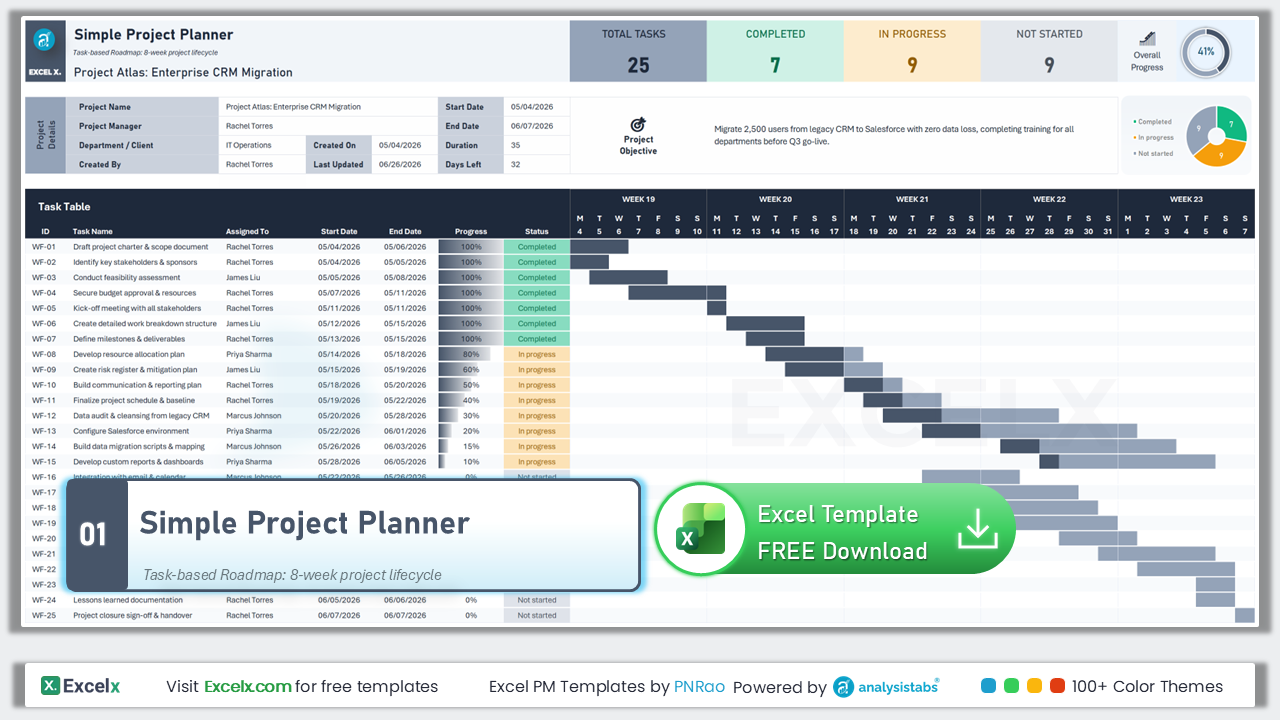
Simple Project Plan
25-task flat list with no phases — the easiest way to plan any small project. Includes Gantt chart, progress bars, and status tracking.
Template #01 · Flat List · 25 Tasks · No Phases · Beginner-Friendly
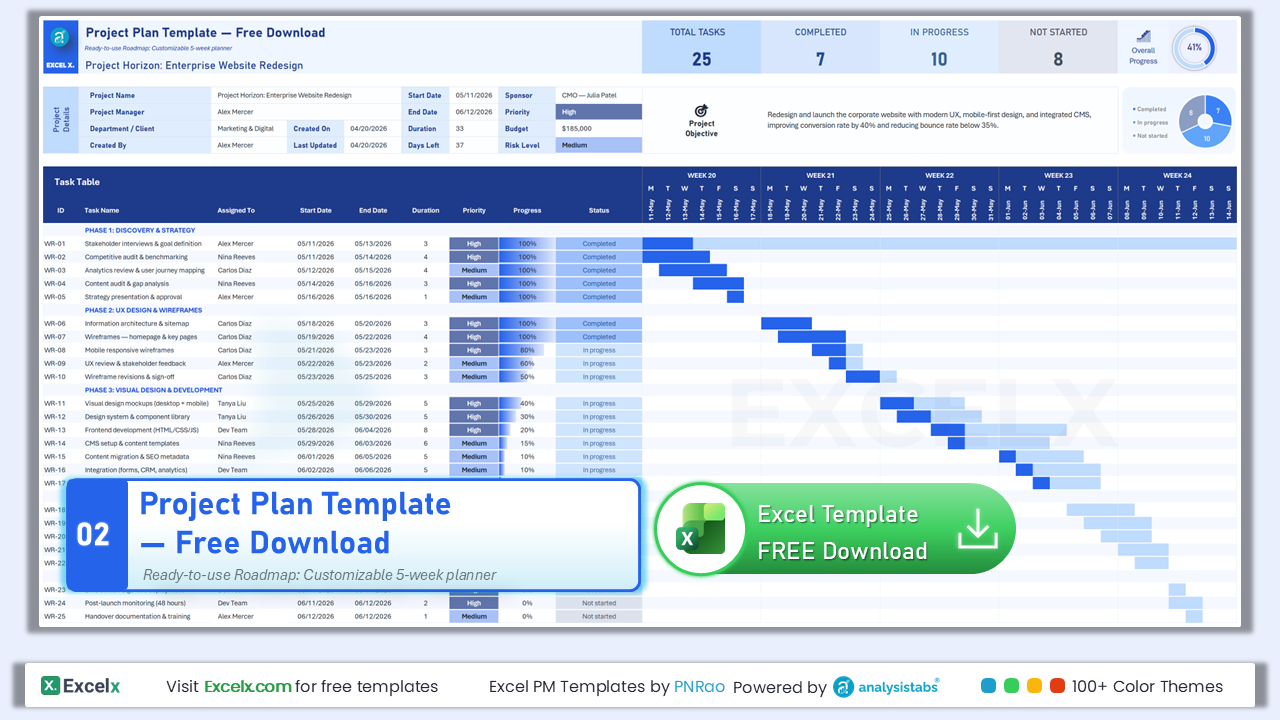
Free Download Project Plan
Our most popular template — 5 phases, 25 tasks, Gantt chart, and KPI dashboard. Ready to use out of the box.
Template #02 · 5 Phases · 25 Tasks · KPI Dashboard · Most Popular
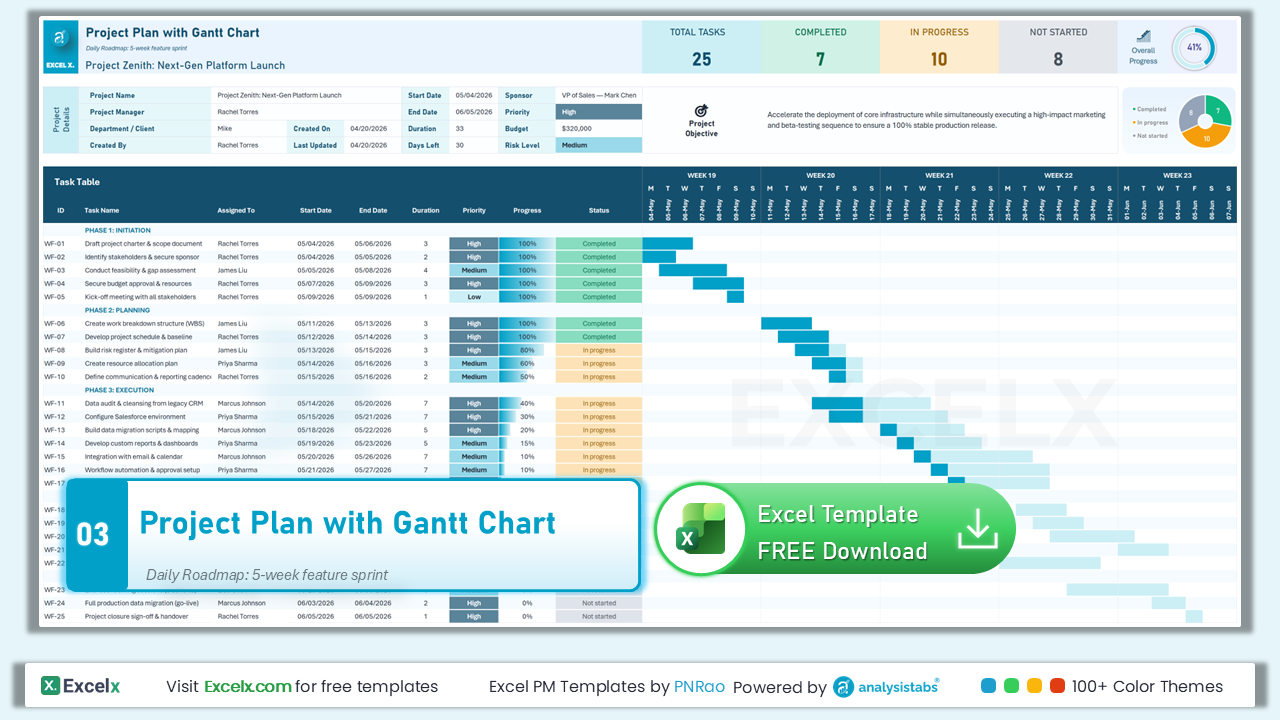
Project Plan with Gantt Chart
Phase-grouped tasks with Priority column, duration tracking, and a 5-week visual Gantt chart with completed vs planned bars.
Template #03 · Priority Column · Duration Tracking · 5-Week Gantt
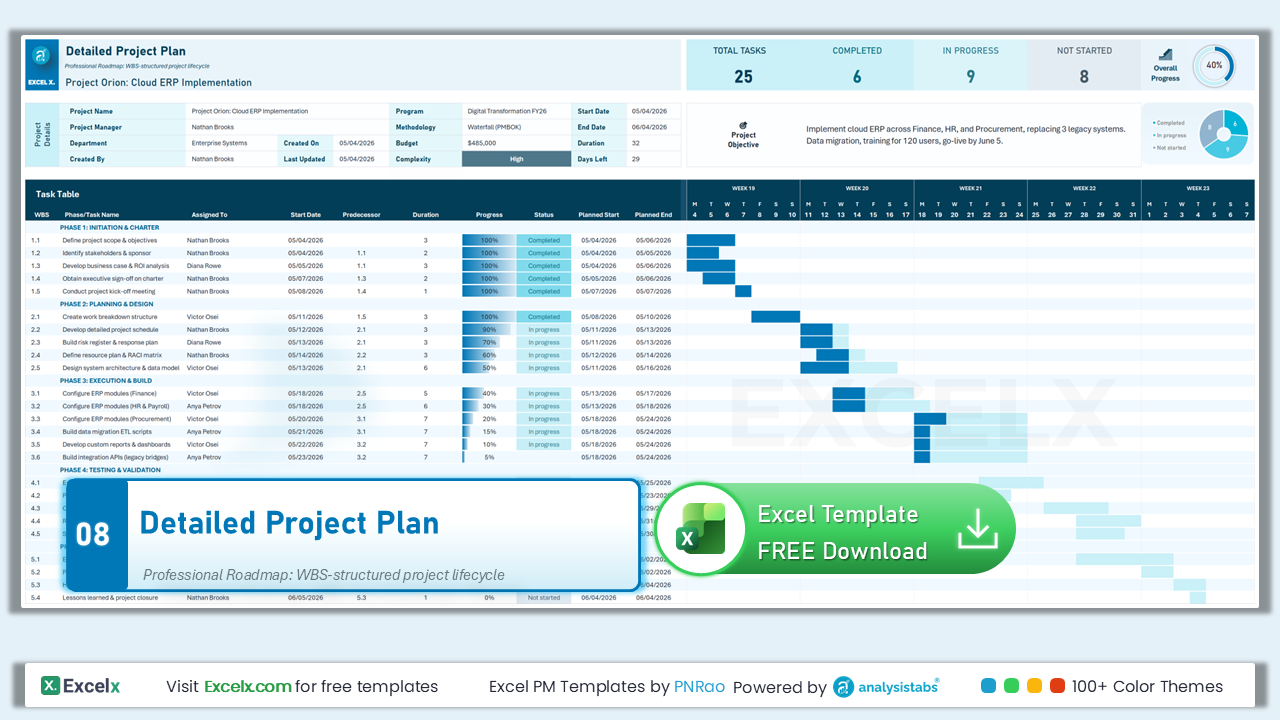
Detailed Project Plan with WBS
WBS numbering, Predecessor column, auto-calculated Planned Start/End dates, and dependency-driven scheduling.
Template #08 · WBS Numbering · Predecessors · Auto-Calculated Dates
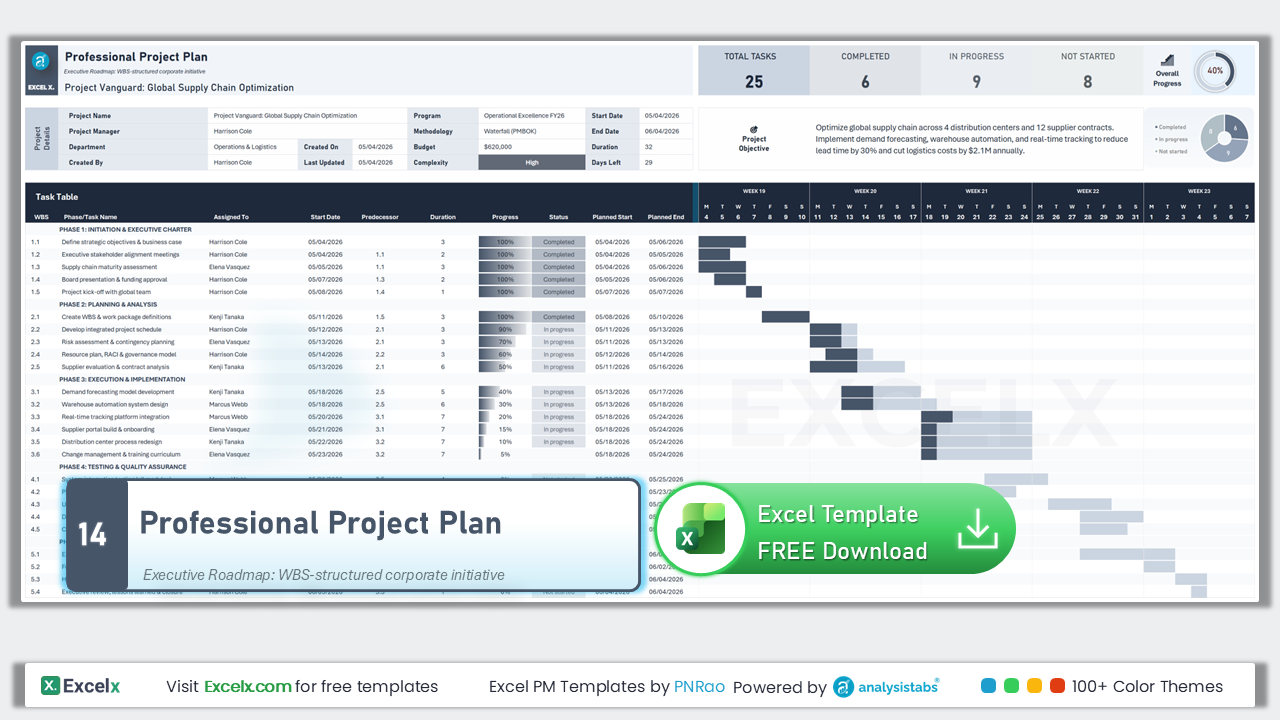
Professional Project Plan
Executive-level WBS with predecessor dependencies, auto-calculated dates, and corporate-grade formatting for presentations.
Template #14 · Executive Format · Dependencies · Corporate Grade

One-Page Project Planner
Everything on one printable page — flat task list, no phases, minimal columns. Perfect for quick projects and status snapshots.
Template #21 · Single Page · Printable · Minimal Columns · Quick Setup
Project Plan Templates by Methodology
Choose the right planning approach — waterfall phases with gate reviews, agile sprints with story points, milestone-driven timelines, or phase-based deliverables.
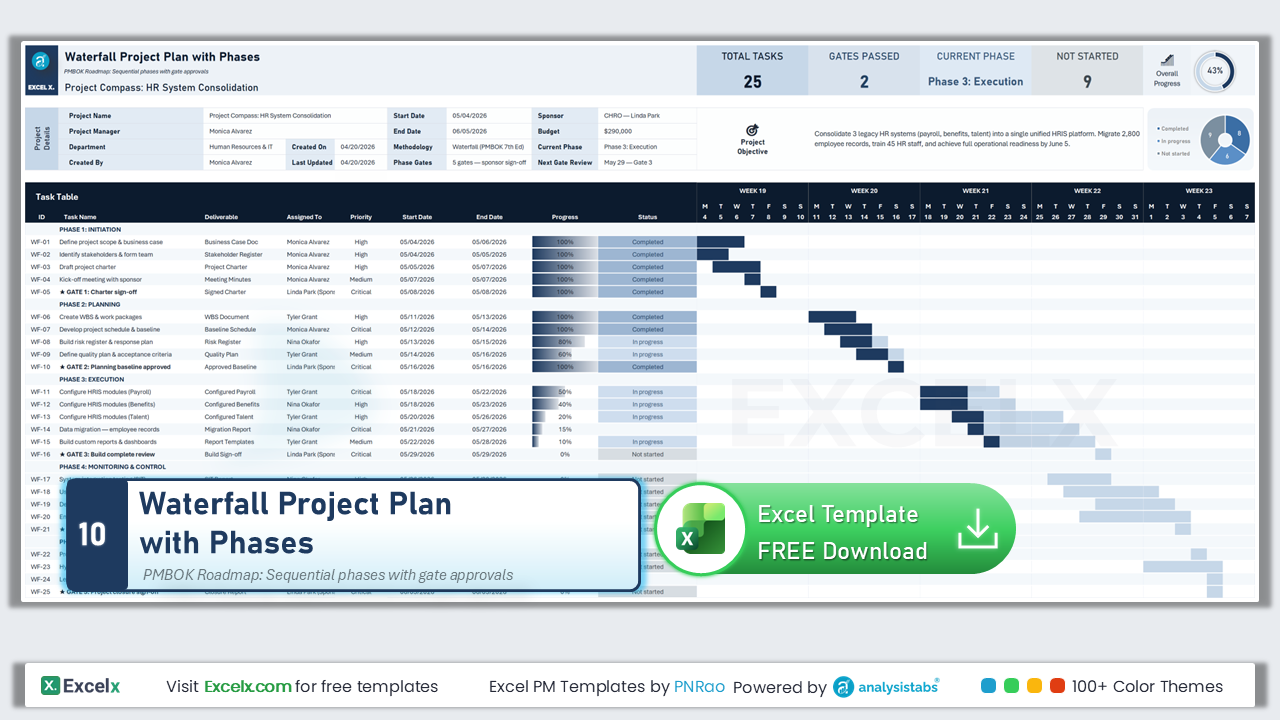
Waterfall Project Plan
PMBOK-style with Deliverable column and 5 phase gate sign-off rows. Sequential phases with formal gate reviews.
Template #10 · PMBOK Style · 5 Gate Reviews · Deliverable Column
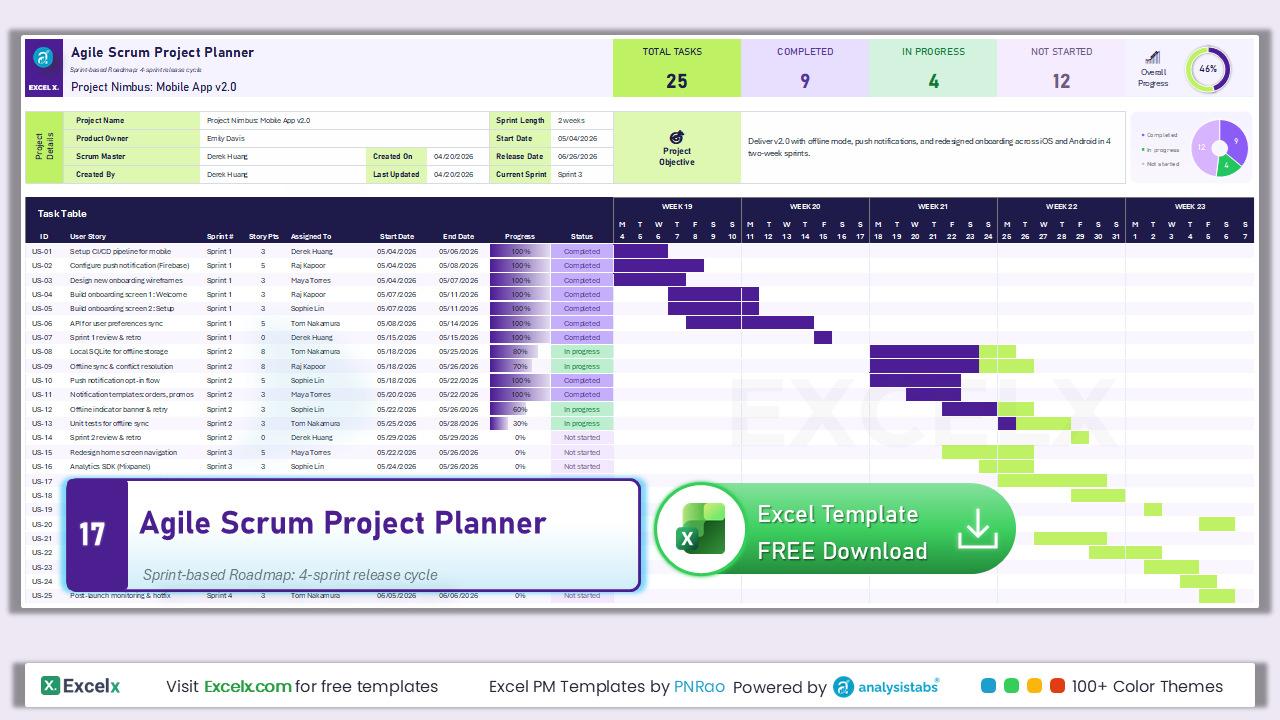
Agile Scrum Project Plan
Sprint-based planning with Story Points column. 4 sprint phases with backlog management and velocity tracking.
Template #17 · Sprint-Based · Story Points · Velocity Tracking · Backlog
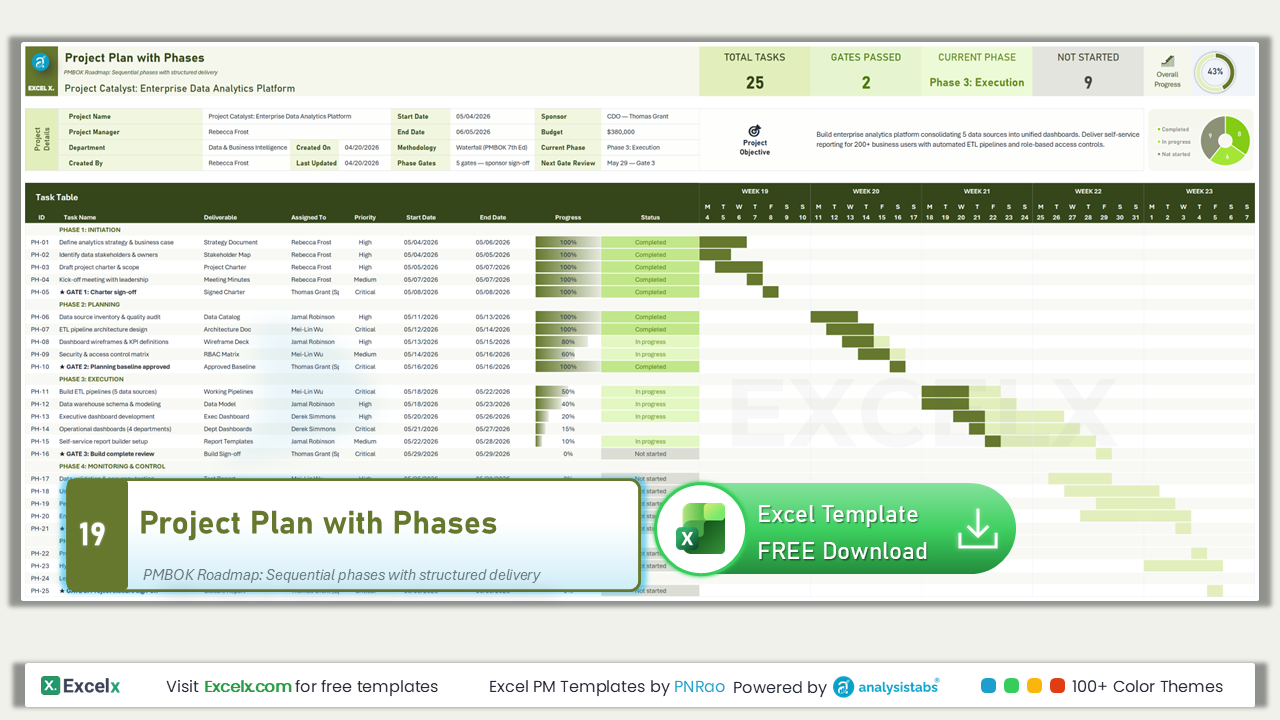
Project Plan with Phases
PMBOK waterfall with Deliverable column and 5 formal gate sign-off checkpoints. Each phase produces a named deliverable.
Template #19 · Phase Gates · Deliverables · Sign-Off Checkpoints
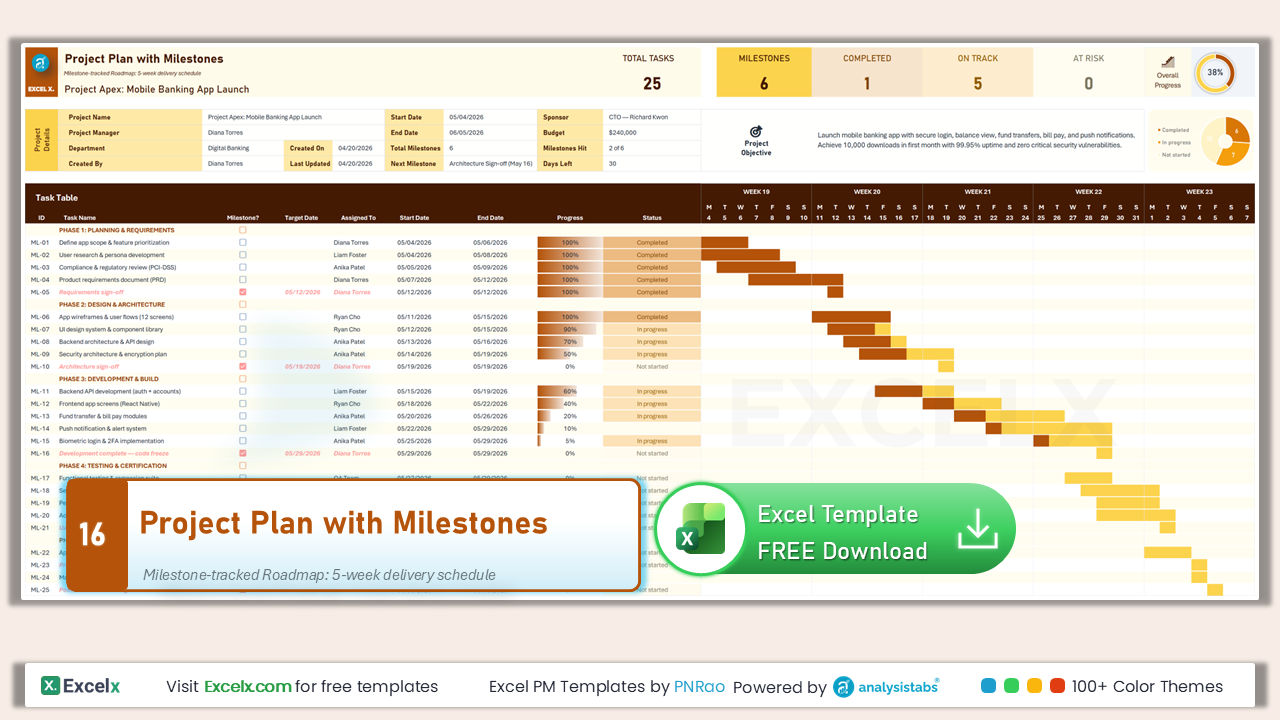
Project Plan with Milestones
Milestone checkpoint column with target dates. 6 milestone markers highlighted in amber across 5 project phases.
Template #16 · 6 Milestones · Target Dates · Amber Highlights
Get all free PM templates delivered to your inbox
Project Plan Templates by Industry
Pre-filled templates with industry-specific columns, terminology, and project phases for IT, construction, marketing, and events.
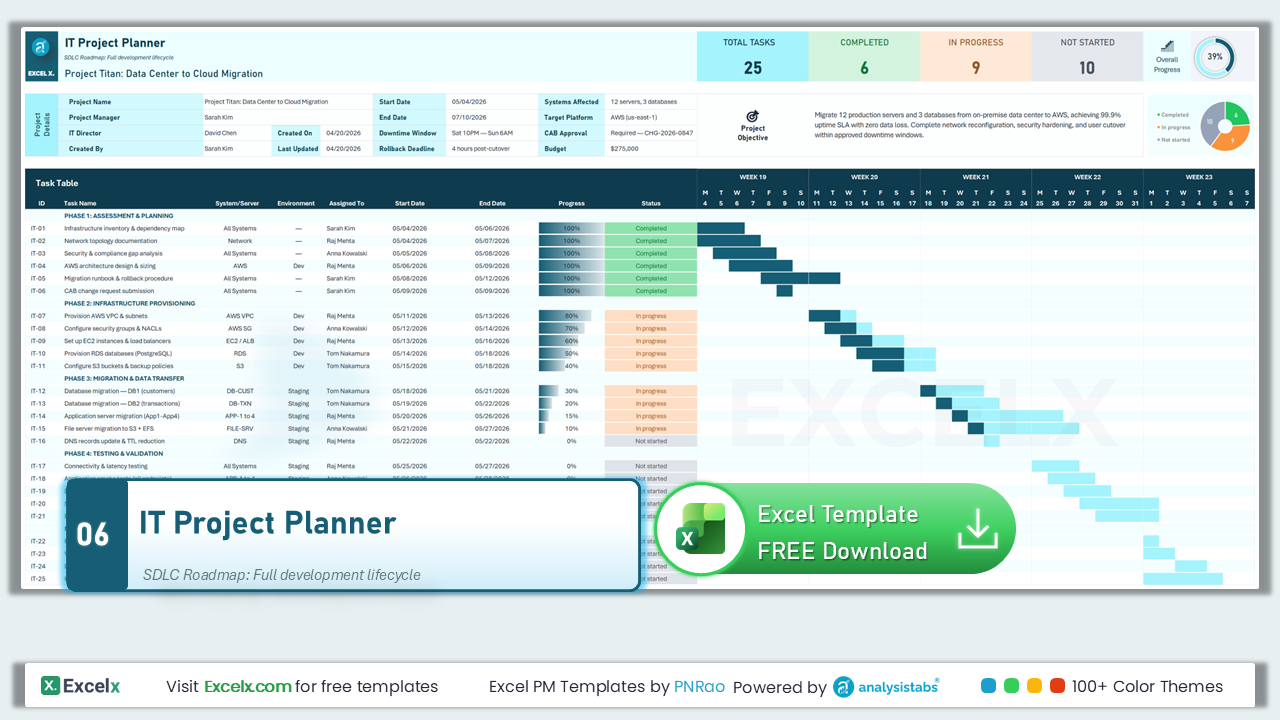
IT Project Plan
System/Server and Environment columns for infrastructure projects. Includes downtime window, CAB approval, and rollback fields.
Template #06 · System/Server · Environment · CAB Approval · Rollback
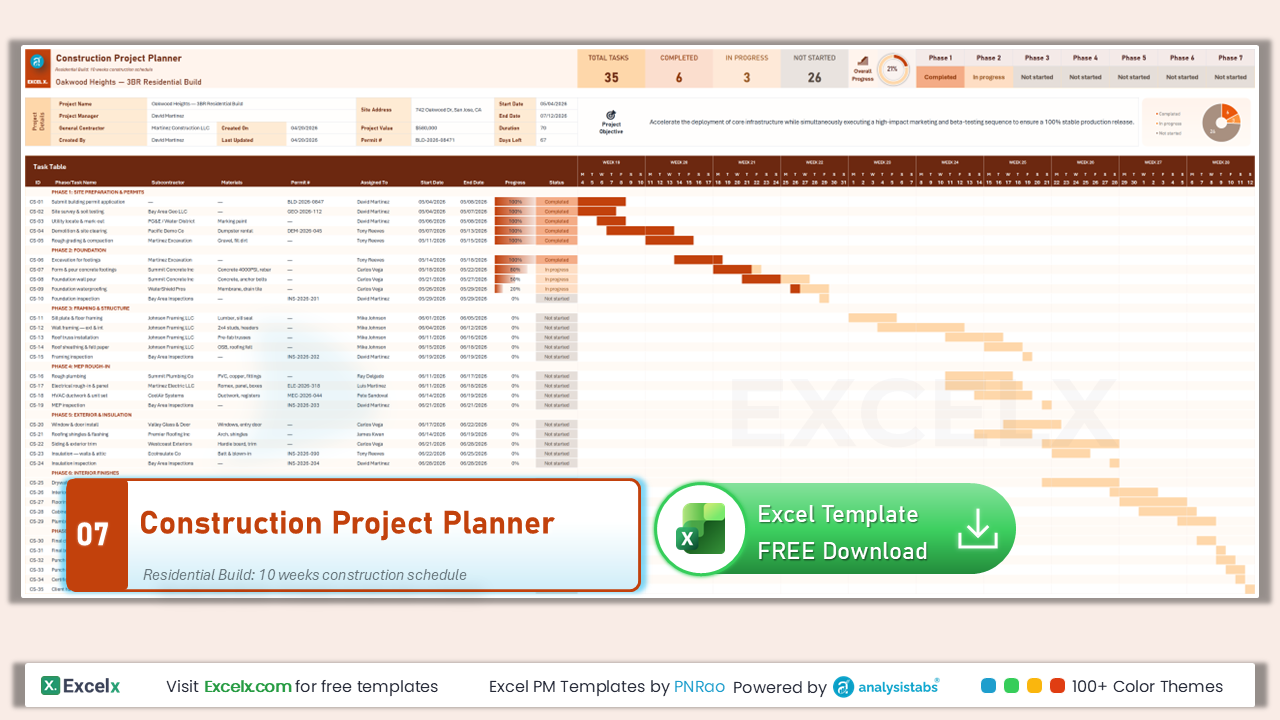
Construction Project Plan
Subcontractor, Materials, and Permit # columns. 7 construction phases with 35 tasks and site-specific fields.
Template #07 · Subcontractor · Materials · Permits · 7 Phases · 35 Tasks

Marketing Campaign Planner
Channel and Budget columns for campaign planning. 5 campaign phases with target audience, KPI goals, and lead tracking.
Template #11 · Channel Tracking · Campaign Budget · KPI Goals · Leads
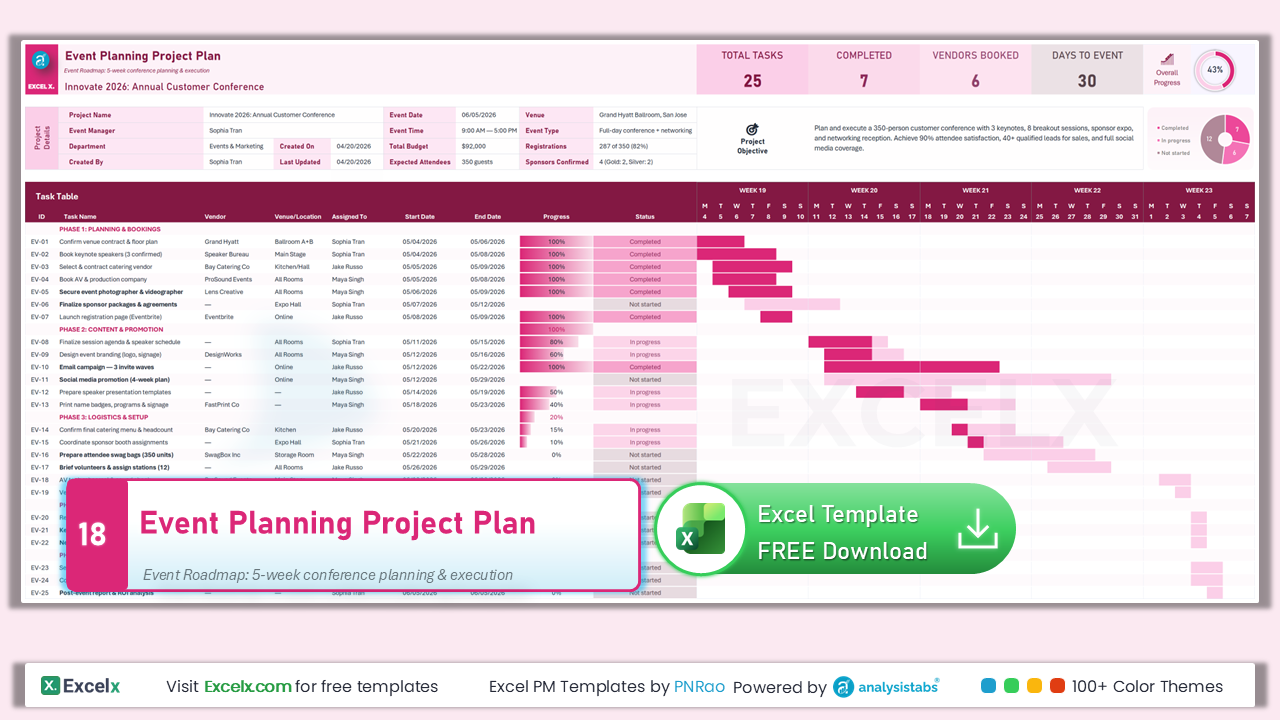
Event Planning Project Plan
Vendor and Venue/Location columns for event management. Covers planning through post-event follow-up with attendee tracking.
Template #18 · Vendor · Venue/Location · Attendees · Post-Event Follow-Up
Advanced Feature Templates
Templates with specialized capabilities — budget variance tracking, milestone timelines, predecessor dependencies, resource allocation with workload heatmaps.
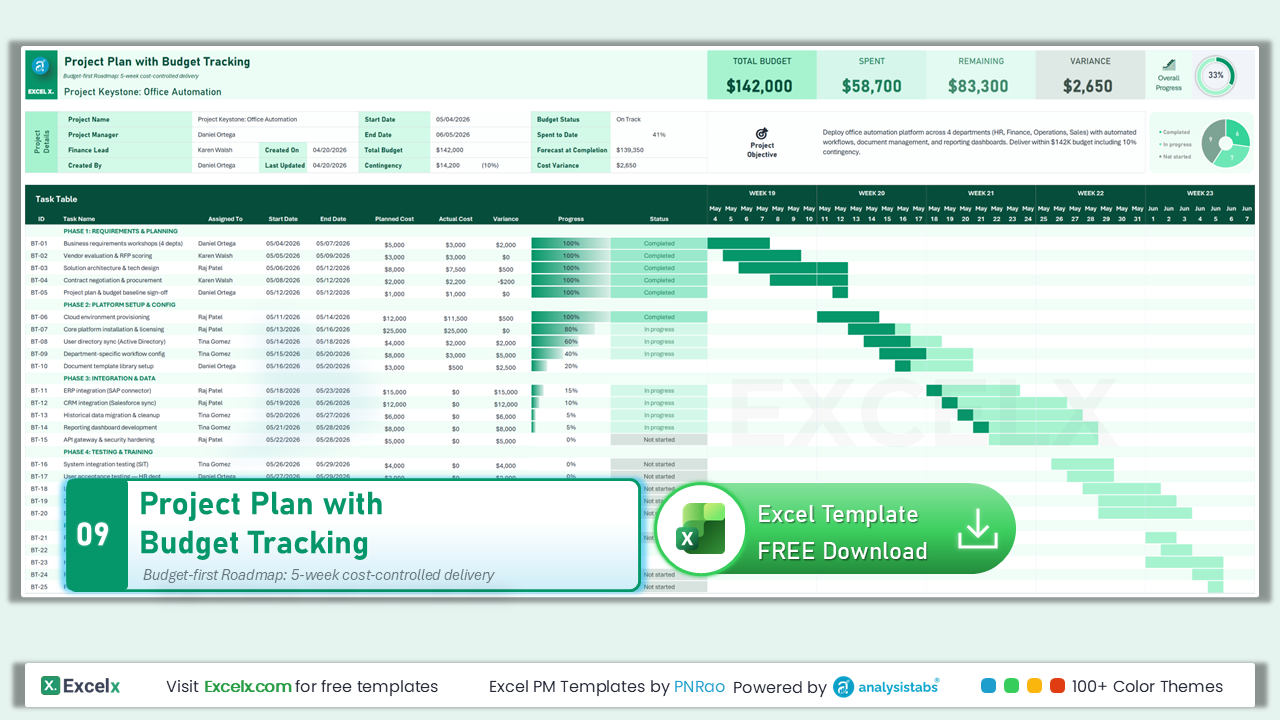
Project Plan with Budget Tracking
Planned Cost, Actual Cost, and Variance columns with conditional formatting — green for under budget, red for over.
Template #09 · Planned vs Actual Cost · Variance · Conditional Formatting
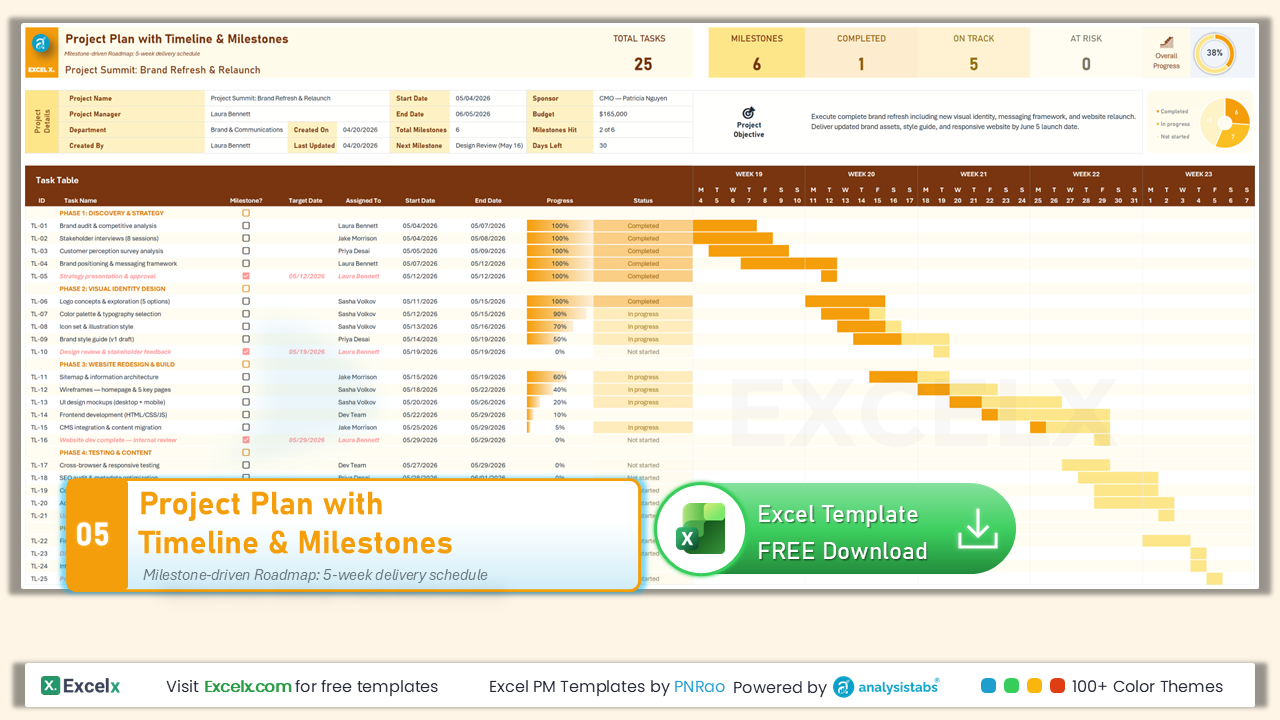
Project Plan with Timeline & Milestones
6 milestone markers with target dates, amber-highlighted gate rows, and a milestone-driven Gantt chart timeline.
Template #05 · 6 Milestone Markers · Gate Rows · Timeline Gantt

Project Plan with Resources & Dependencies
WBS + Predecessor + Planned Hours + auto-calculated dates. Includes Team Members table with capacity tracking.
Template #20 · WBS · Predecessors · Planned Hours · Team Capacity
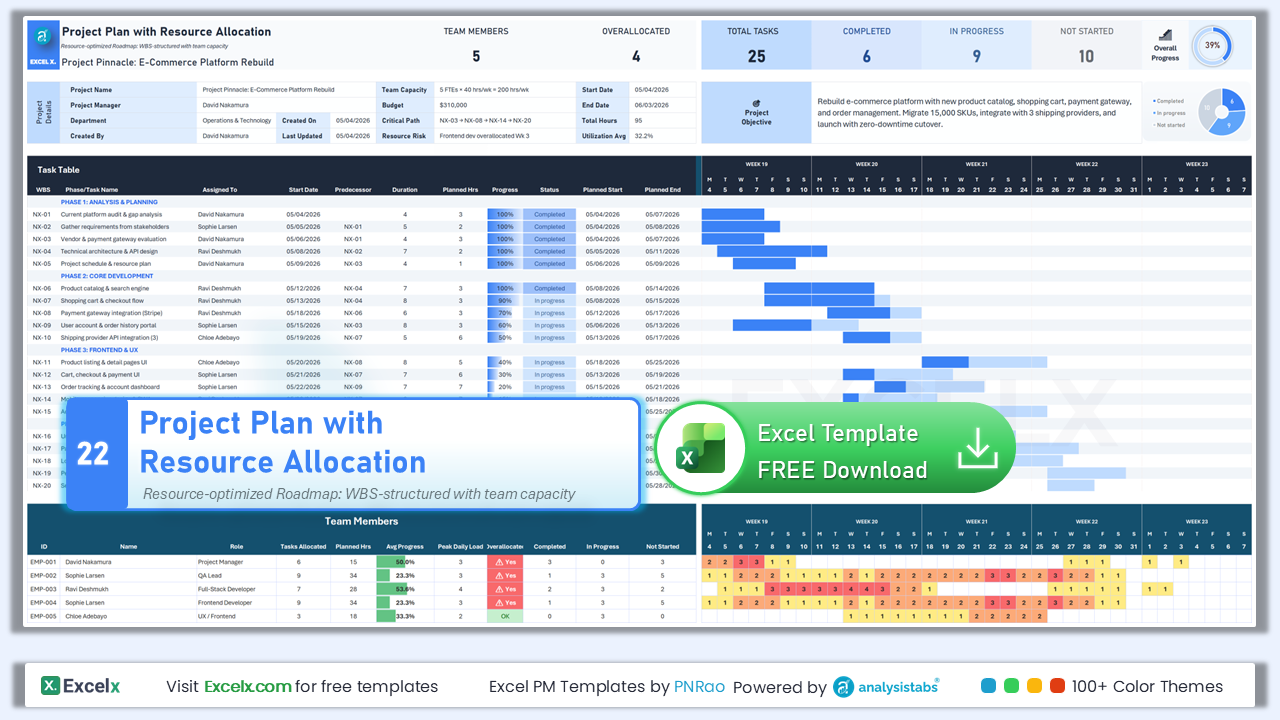
Project Plan with Resource Allocation
Planned Hours and Team Members table with workload heatmap. Track overallocation, daily load, and utilization per member.
Template #22 · Workload Heatmap · Overallocation · Daily Load · Utilization
Executive & Portfolio Templates
For PMOs, portfolio directors, and executive stakeholders — portfolio-level tracking and formal project authorization documents.
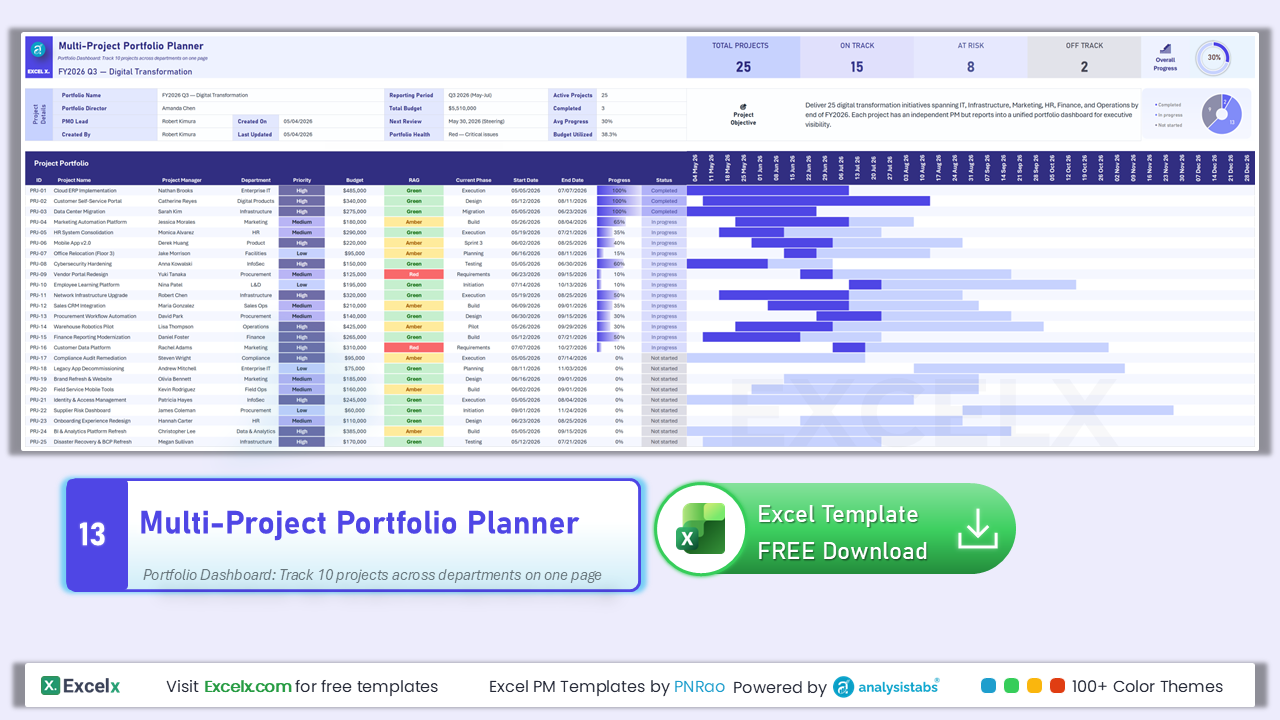
Multi-Project Portfolio Planner
Rows are projects, not tasks. 10 project rows with weekly Gantt, RAG status, budget tracking, and portfolio-level KPIs.
Template #13 · 10 Projects · RAG Status · Portfolio KPIs · Weekly Gantt
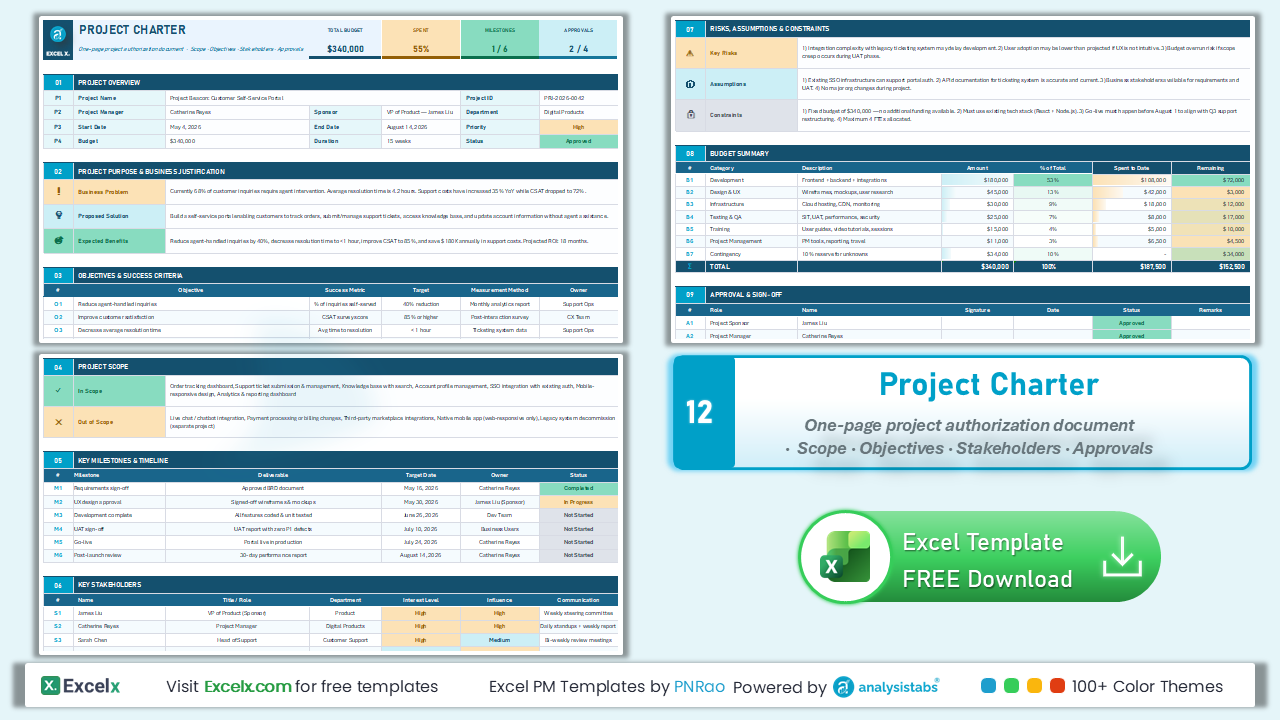
Project Charter Template
One-page executive document — not a task table. 9 sections covering scope, objectives, stakeholders, risks, and success criteria.
Template #12 · Executive Document · 9 Sections · Scope · Stakeholders
Complete Project Solutions
Full-featured templates that combine task planning with specialized workflows — multi-tab all-in-one suites and SDLC-specific planners.
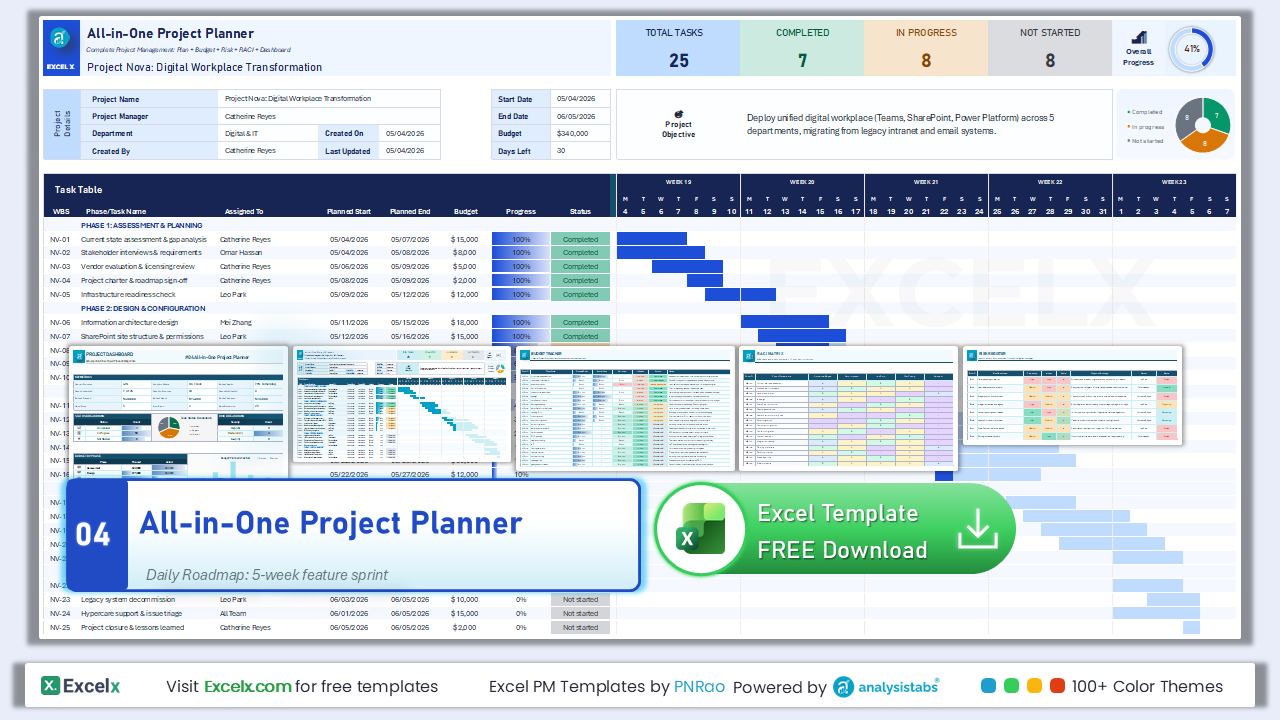
All-in-One Project Planner
7 tabs: Project Plan, Budget Tracker, Risk Register, RACI Matrix, Status Report, Dashboard, and Lessons Learned.
Template #04 · 7 Tabs · Budget · Risk · RACI · Dashboard · Lessons Learned
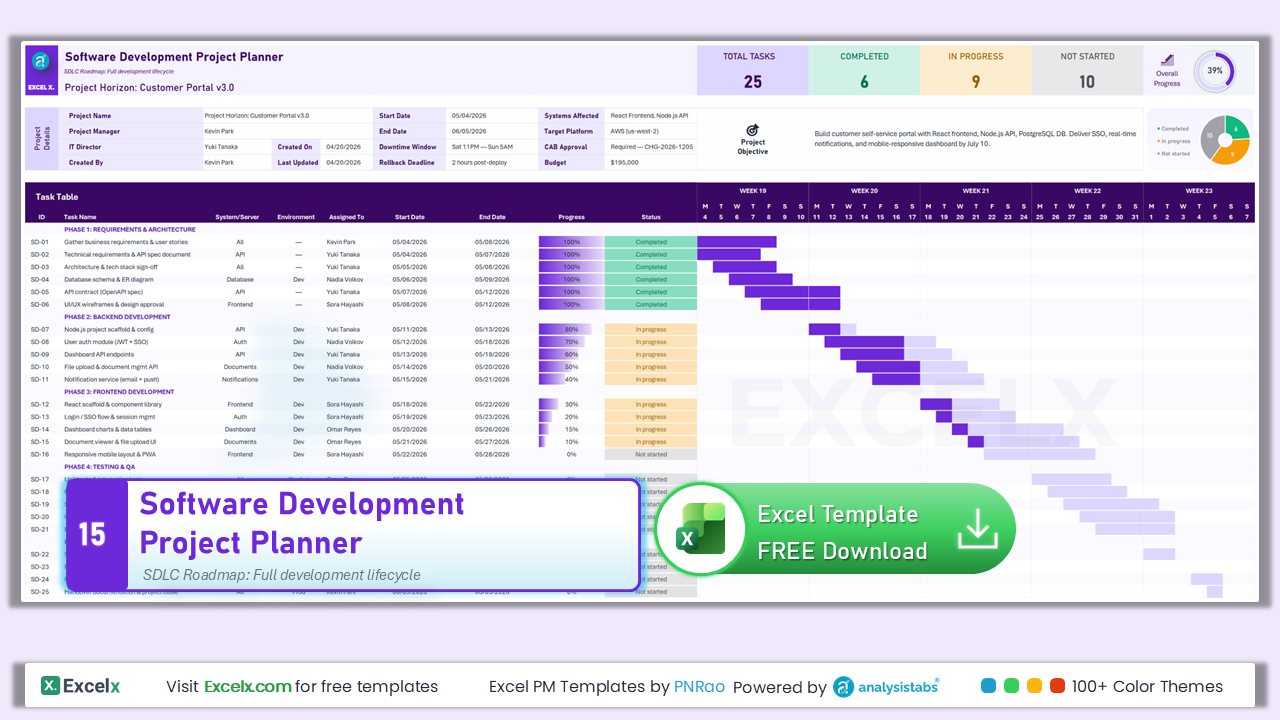
Software Development Project Plan
System/Server and Environment columns for SDLC projects. Covers requirements through deployment with dev-specific fields.
Template #15 · SDLC · System/Server · Environment · Dev to Deployment
Which Project Plan Template Should You Use?
Use this quick-reference table to pick the right template for your project type, team size, and complexity level.
| Template | Best For | Tasks | Key Feature | Level |
|---|---|---|---|---|
| Simple Plan | Small projects, beginners | 25 | Flat list, no phases | ⭐ |
| Free Download | General-purpose projects | 25 | 5 phases + KPI dashboard | ⭐⭐ |
| Gantt Chart Plan | Timeline-driven projects | 25 | Priority + 5-week Gantt | ⭐⭐ |
| Detailed WBS | Complex, dependency-heavy | 25 | WBS + predecessors + auto dates | ⭐⭐⭐ |
| Professional | Executive presentations | 25 | Corporate formatting + WBS | ⭐⭐⭐ |
| One-Page | Quick status snapshots | 25 | Printable single page | ⭐ |
| Waterfall | Construction, compliance | 25 | Phase gates + deliverables | ⭐⭐⭐ |
| Agile Scrum | Software, creative teams | 25 | Sprints + story points | ⭐⭐ |
| Phases | Waterfall with deliverables | 25 | Gate sign-offs per phase | ⭐⭐ |
| Milestones | Milestone-driven tracking | 25 | 6 milestone checkpoints | ⭐⭐ |
| IT Project | Infrastructure, deployments | 25 | System/Server + Environment | ⭐⭐⭐ |
| Construction | Building, renovation | 35 | Subcontractor + Materials | ⭐⭐⭐ |
| Marketing | Campaigns, launches | 25 | Channel + Budget tracking | ⭐⭐ |
| Event Planning | Conferences, events | 25 | Vendor + Venue columns | ⭐⭐ |
| Budget Tracking | Cost-sensitive projects | 25 | Planned vs Actual + Variance | ⭐⭐⭐ |
| Timeline | Gate-review projects | 25 | 6 milestones + timeline Gantt | ⭐⭐⭐ |
| Dependencies | Resource-constrained teams | 25 | Predecessors + Team Capacity | ⭐⭐⭐⭐ |
| Resource Allocation | Team workload management | 25 | Heatmap + overallocation alerts | ⭐⭐⭐⭐ |
| Multi-Project | PMOs, portfolio managers | 10 projects | RAG status + portfolio KPIs | ⭐⭐⭐ |
| Project Charter | Project authorization | N/A | 9-section executive document | ⭐⭐ |
| All-in-One | Full project management | 25 | 7 tabs (Budget, Risk, RACI…) | ⭐⭐⭐⭐ |
| Software Dev | SDLC projects | 25 | System/Server + Environment | ⭐⭐⭐ |
What Is a Project Plan Template
A project plan template is a pre-built Excel spreadsheet that provides the structure for documenting tasks, timelines, resource assignments, budgets, and progress tracking — so you can start managing your project immediately instead of building a plan from scratch.
A project plan itself is a formal document that outlines the objectives, scope, schedule, resources, and deliverables of a project. It serves as a roadmap for the project team, ensuring everyone is working toward the same goals within the defined timeline.
Project planning helps managers break down large projects into smaller, manageable tasks — making it easier to track progress, allocate resources, and meet client specifications. If you’re new to organizing data in spreadsheets, our guide on what Excel is and why it’s essential covers the fundamentals.
What Does a Project Plan Template Include
Every project plan template on this page includes these built-in components:
- KPI Dashboard: Auto-calculated totals for completed, in-progress, and not-started tasks with an overall progress donut chart.
- Project Details Section: Structured header area for project name, manager, dates, duration, and objectives — with auto-calculated fields shown in grey.
- Task Table: Columns for task ID, name, assigned team member, start/end dates, progress, and status — with optional columns for budget, priority, dependencies, and more.
- Gantt Chart: Auto-updating visual timeline built with conditional formatting (no macros) showing planned vs completed bars for each task.
- Sample Data: Every template includes a pre-filled sample project so you can see how it works before replacing with your own data.
- Blank Template: A clean version with all data cleared — ready for you to start entering your project immediately.
Excel Project Plan Template Walkthrough
Every template on this page is built with four key sections — a KPI Dashboard, Project Details, Task Table, and Gantt Chart. Here’s what each section contains and how to use it.
KPI Dashboard
The title bar at the top of every template includes a real-time KPI dashboard that updates automatically as you enter task data.
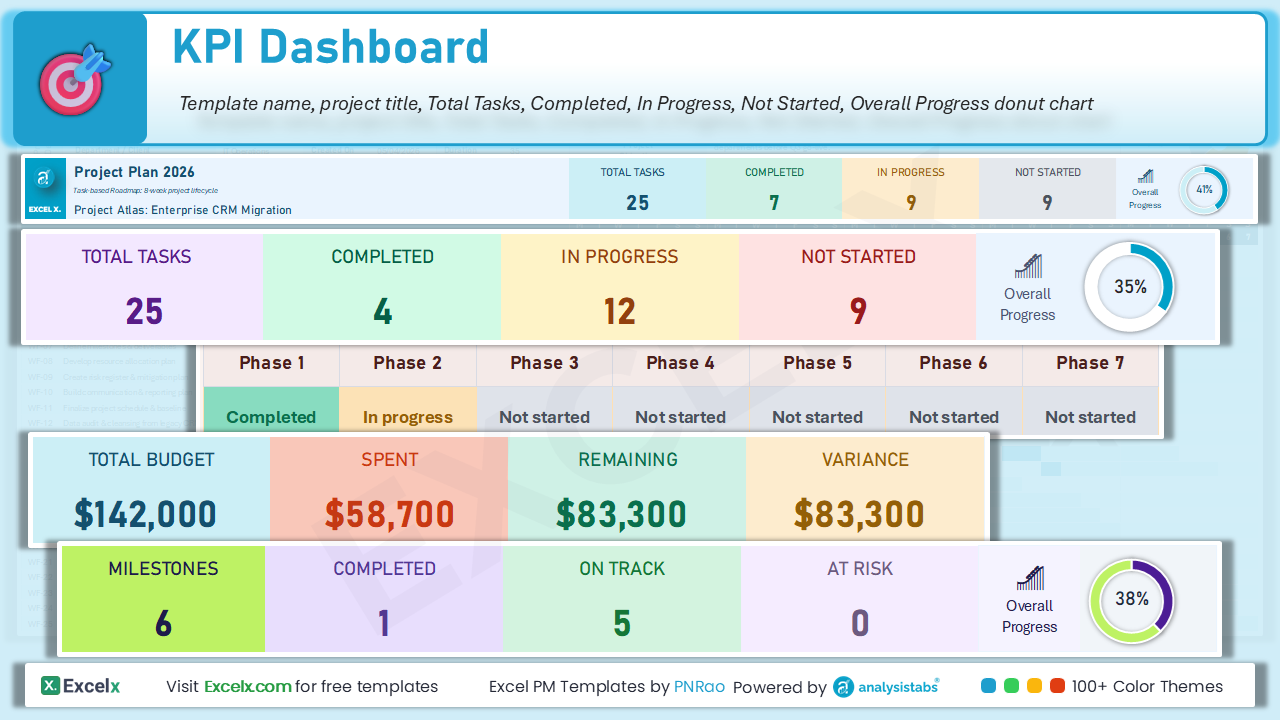
- Template Title: The template name and project subtitle — auto-populated from Project Name in the details section.
- Total Tasks: Auto-counted from the task table. Shows total number of tasks in your project.
- Completed: Number of tasks with 100% progress — highlighted in green.
- In Progress: Tasks between 1–99% progress — highlighted in amber/yellow.
- Not Started: Tasks at 0% progress — shown in grey.
- Overall Progress: A donut chart showing overall project completion percentage at a glance.
Project Details
The project details section captures your project’s essential information. Fill this in first before adding tasks. Grey cells are auto-calculated — only white cells are editable.
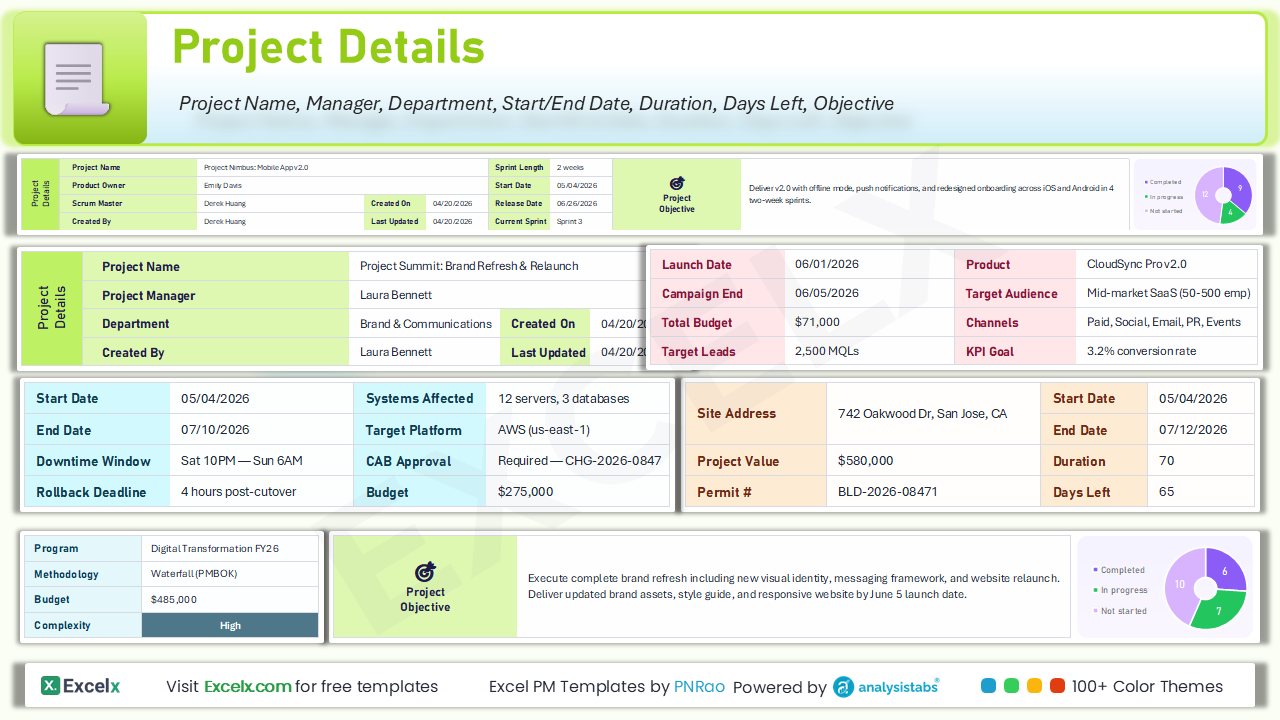
- Project Name: The title of your project — also displayed in the KPI dashboard title bar.
- Project Manager: The person responsible for delivery.
- Department / Client: Your department or client name.
- Start Date: Auto-calculated from the earliest task start date (grey cell).
- End Date: Auto-calculated from the latest task end date (grey cell).
- Duration: Auto-calculated number of working days (grey cell).
- Days Left: Auto-calculated remaining days until project end (grey cell).
- Project Objective: A brief description of the project goal and success criteria.
Task Table
The task table is where you define every task in your project. White columns are editable — grey columns are auto-calculated and locked. For a more detailed hierarchical decomposition, use our dedicated WBS Template.
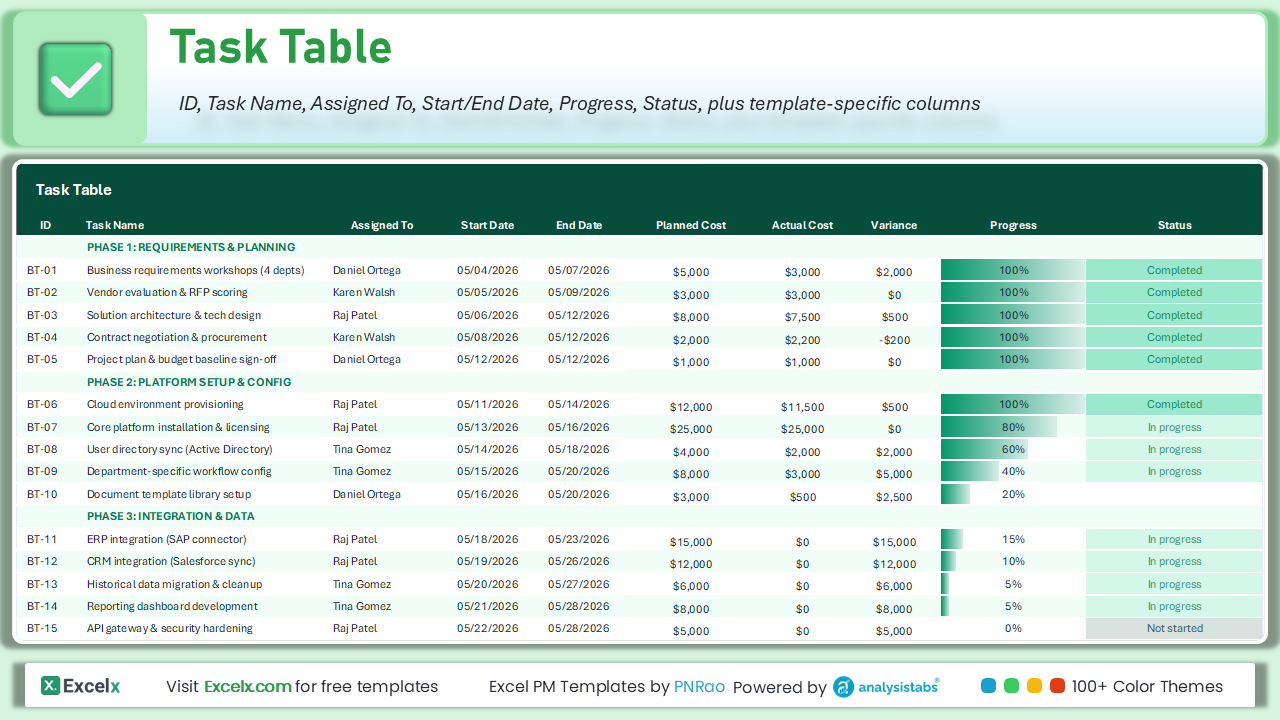
- ID / WBS: Unique task identifier (e.g., WF-01) or WBS number (e.g., 1.1, 2.3).
- Task Name: Clear, action-oriented task description.
- Assigned To: The team member responsible for completing the task.
- Start Date: When the task should begin (MM/DD/YYYY).
- End Date: When the task must be completed (MM/DD/YYYY).
- Progress: Enter manually from 0% to 100%. Update daily as work progresses.
- Status: Auto-calculated from Progress — Completed (100%), In progress (1–99%), Not started (0%). Do not edit.
- Phase rows: Bold colored rows are section headers (e.g., “PHASE 1: INITIATION”). Enter tasks below them.
Gantt Chart
The built-in Gantt chart provides a visual overview of your entire project timeline — showing task durations and completion status at a glance. The chart updates automatically as you enter dates and progress. For more Gantt chart options, explore our dedicated Gantt Chart Templates.
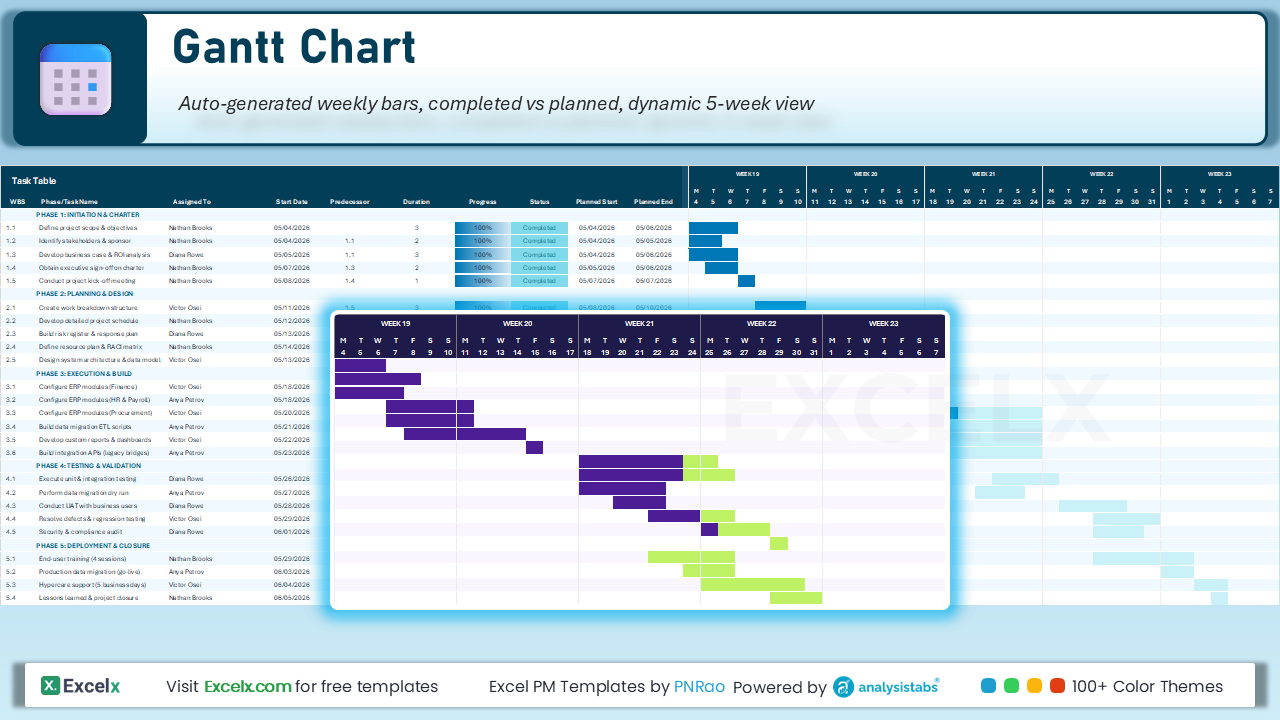
- Weekly Timeline: Columns represent days grouped by week (Week 1, Week 2, etc.) with day-of-week headers.
- Planned Bars: Light-colored bars showing the full planned duration of each task.
- Completed Bars: Darker bars overlaying planned bars to show actual progress completed.
- Auto-Updating: Gantt bars update automatically based on Start Date, End Date, and Progress values. Do not edit manually.
- Phase Grouping: Tasks are visually grouped under their phase headers for easy navigation.
Get all free PM templates delivered to your inbox
How to Use This Project Plan Template
Follow these steps to set up and manage your project effectively:
-
Download and openClick the download link above and open the file in Excel (2016 or later) or Google Sheets. Need help getting started? See our guide on creating a new workbook.
-
Fill in project detailsEnter your project name, manager, and objective in the header section. Grey cells auto-calculate — only edit white cells.
-
Define your tasksList all tasks in the Task Table with start dates, end dates, and assigned team members. Use the phase rows to organize by project stage.
-
Set dependenciesFor templates with Predecessor columns (#08, #14, #20), enter the ID of the task that must finish before this one starts.
-
Track progressUpdate the Progress column (0–100%) for each task as work is completed. The Gantt chart, KPI dashboard, and status column update automatically.
-
Review and communicateUse the KPI dashboard for executive summaries and the Gantt chart view for detailed status meetings. Share the file or export to PDF for stakeholders.
If you’re managing multiple projects simultaneously, use our Multi-Project Portfolio Planner or transfer summary data into our Multiple Project Tracker for a portfolio-level overview.
Types of Project Plans
Not all project plans are the same. The right format depends on your project’s complexity, industry, and management approach.
| Type | Best for | Template |
|---|---|---|
| Waterfall | Sequential phases, fixed scope | Waterfall Plan |
| Agile / Scrum | Iterative sprints, evolving requirements | Agile Scrum |
| Hybrid | Waterfall phases + agile execution | Plan with Phases + sprint sub-tasks |
| Resource-focused | Team capacity is the constraint | Resource Allocation |
| Budget-focused | Cost tracking alongside tasks | Budget Tracking |
Waterfall Project Plan
The traditional approach where phases follow a strict sequence: requirements → design → build → test → deploy. Best for projects with well-defined requirements — construction, manufacturing, or compliance-driven work. Download Waterfall Plan.
Agile Project Plan
Work is divided into short iterations (sprints), with planning, execution, and review in each cycle. Best for software development, creative projects, and anything where feedback loops are essential. Download Agile Scrum Plan.
Hybrid Project Plan
Combines waterfall’s structured phases with agile flexibility within each phase. The overall project follows a sequence (plan → design → build → launch), but the “build” phase runs as agile sprints.
Project Plan vs Other Project Documents
| Document | Purpose | Timing | Template |
|---|---|---|---|
| Project charter | Authorizes the project, defines scope | Before the plan | Charter |
| WBS | Decomposes scope into tasks | Before the plan | WBS |
| Project plan | Tasks + timelines + resources + Gantt | Planning phase | This page |
| Project schedule | Detailed timeline with dependencies | During planning | Schedule |
| Action items | Tracks meeting follow-ups | During execution | Action items |
Recommended PM workflow
Excel Tips for Better Project Plans
=DATEDIF(start_date, end_date, "d") — automatically counts days between start and end dates. See our Excel Formulas and Functions guide.
Data → Data Validation → Allow: List. Enter: “Not Started, In Progress, Complete.” Prevents typos. Excel Features guide.
Color-code rows automatically: red for overdue, yellow for in-progress, green for completed. Instant visual feedback without reading every cell.
Pull team member details from a separate roster sheet using VLOOKUP based on the “Assign To” name.
For 50+ tasks: View → Freeze Panes. Worksheet guide. Use keyboard shortcuts for faster data entry.
Use Excel Macros to reset progress, generate status reports, or duplicate templates for new projects.
Customization Tips for Excel
Right-click any row > Insert Row. Gantt chart formulas extend automatically within the table range. For rows below the table, extend the conditional formatting range via Home > Conditional Formatting > Manage Rules.
Select Status cells > Data > Data Validation > Allow: List. Enter: Open, In Progress, Completed, On Hold. Prevents typos. Excel Features guide.
Home > Conditional Formatting > New Rule > Formula: =AND($E5<TODAY(), $F5<100%). Set red fill. Tasks past deadline highlight automatically.
For 50+ tasks: click cell below header row > View > Freeze Panes. Worksheet guide.
Pull team member details from a separate roster sheet using VLOOKUP based on the “Assign To” name.
Excel shortcuts: Ctrl+; inserts today’s date, Ctrl+D copies cell above, Tab moves to next column. For recurring tasks, use Excel Macros.
This page provides Excel (.xlsx) versions only. For the same templates in Word, PowerPoint, PDF, and Google Sheets formats, visit Analysistabs.com/templates/project-plan/
Common Project Planning Mistakes to Avoid
- Starting without a charter: Always start with a project charter to align stakeholders before building the plan.
- Tasks too vague: “Do marketing” isn’t a task — “Write blog post draft for product launch” is.
- Ignoring dependencies: If design must be approved before development starts, document that dependency.
- Not updating the plan: A plan not updated weekly becomes fiction.
- Underestimating duration: Add 15–20% buffer. Use a WBS to break large tasks into estimable pieces.
- No single owner per task: “Marketing team” isn’t accountable — assign a specific name.
- Too many projects in one file: Use our Multiple Project Tracker instead.
Project Plan Examples by Use Case
Here’s how to structure the task list for different project types.
Website Redesign
- Discovery: Stakeholder interviews, competitor analysis, content audit
- Design: Wireframes, visual mockups, design review and approval
- Development: Frontend build, CMS integration, responsive testing
- Content: Copy migration, image optimization, SEO metadata
- Launch: QA testing, staging review, go-live, post-launch monitoring
Product Launch
- Market research: Customer interviews, competitive analysis, pricing strategy
- Product development: Prototype, testing, manufacturing/build
- Marketing: Campaign brief, content creation, media buying, PR outreach
- Sales enablement: Sales deck, demo environment, training sessions
- Launch: Soft launch, full launch, post-launch analytics
Event Planning
- Planning: Budget, venue selection, vendor contracts, speaker outreach
- Logistics: Catering, AV setup, signage, attendee registration
- Marketing: Email invitations, social media promotion, landing page
- Execution: Day-of setup, speaker coordination, attendee check-in
- Follow-up: Attendee survey, vendor payments, ROI report
Office Relocation
- Planning: Budget, timeline, new office selection, lease negotiation
- IT: Network infrastructure, workstation setup, phone system migration
- Logistics: Furniture, packing, physical move coordination
- Communication: Staff announcements, client notifications, address updates
- Close-out: Old office handover, final vendor payments, post-move feedback
How to Create a Project Plan Template in Excel
-
Create a new workbookOpen Microsoft Excel and create a new workbook. Rename the first sheet as “Project Plan.”
-
Add column headingsTask Name, Description, Start Date, End Date, Duration, Assigned To, and Status.
-
Enter tasks and datesFill in your tasks, descriptions, start dates, and end dates for each row.
-
Calculate durationUse
=DATEDIF(start_date, end_date, "d")to auto-count days. See our Excel Formulas guide. -
Assign team membersEnter names in the “Assigned To” column for accountability.
-
Create Status dropdownData → Data Validation → Allow: List. Enter: “Not Started, In Progress, Complete.” Excel Features guide.
-
Add extra columnsBudget, priority, dependencies — customize to your project needs.
-
Save as templateFile → Save As → Excel Template (.xltx). Reuse for every new project. Saving workbooks guide.
Frequently Asked Questions
What is a project plan template?
A pre-built spreadsheet that provides the structure for documenting tasks, timelines, resource assignments, and progress tracking. Download, fill in your project’s details, and start managing immediately. All 22 templates on this page include a KPI dashboard, task table, and Gantt chart.
Can I use this template in Google Sheets?
Yes. The template is a standard .xlsx file that opens in Google Sheets, LibreOffice Calc, or any application that supports the Excel format. Some advanced conditional formatting may need minor adjustments.
How do I add a Gantt chart to my project plan?
All 22 templates on this page include a built-in Gantt chart that updates automatically. For standalone Gantt charts, see our Gantt Chart Templates.
What’s the difference between a project plan and a project charter?
A project charter defines the project’s purpose and scope — it authorizes the project. A project plan details how the work will be done — tasks, timelines, resources, and Gantt chart. The charter comes first.
How detailed should my task list be?
Each task should be specific enough that the assigned person knows what to do. If a task takes more than 5 days, break it down using a WBS Template. If less than half a day, track it as an action item.
How often should I update the project plan?
Update progress percentages weekly at minimum. Update dates and scope whenever changes occur. For agile projects, review at the start of each sprint.
Can I track multiple projects in one file?
Use our Multi-Project Portfolio Planner for managing multiple projects, or download our Multiple Project Plan Template 2026. Single-project templates are designed for one project per file.
How do I handle task dependencies?
Use our Detailed Plan (WBS) or Resources & Dependencies templates — both include Predecessor columns for dependency tracking.
Which template should I use for agile projects?
Download Agile Scrum Plan for sprint-based planning with Story Points, or use Software Development for a full SDLC workflow.
What Excel formulas are useful for project planning?
DATEDIF for duration, SUMIFS for aggregating progress, VLOOKUP for resource data, and IF/AND for conditional status logic. See our complete formula reference.
Is there a free project plan template for Excel?
Yes. All 22 templates on this page are completely free — no signup, no email required. Download the .xlsx file directly and open it in Excel 2016 or later. Each template includes a sample project with data, a blank template, and an instructions sheet.
How do I create a project timeline in Excel?
Download any template from this page — each one includes a built-in Gantt chart that creates your project timeline automatically. Enter your task Start Date and End Date, and the timeline bars appear instantly. No manual drawing or chart creation needed. For standalone timelines, see our Gantt Chart Templates.
What is the best Excel template for project management?
It depends on your project complexity. For simple projects, start with our Simple Project Plan (flat task list, no phases). For full project management with budget tracking, risk registers, and dashboards, download the All-in-One Project Planner with 7 integrated tabs. See our comparison table to find the right fit.
Can I use these templates for construction project planning?
Yes. Our Construction Project Plan template includes industry-specific columns for Subcontractor, Materials, and Permit # with 7 construction phases from pre-construction through closeout. For other industries, see our IT, Marketing, and Event Planning templates.
Related Templates and Resources
Gantt Chart Templates
Visualize project timelines with dedicated Gantt charts.
WBS Template
Break down your project into hierarchical task groups.
Project Charter
Define project scope, objectives, and stakeholders.
Project Schedule
Build detailed project timelines and schedules.
Action Items
Track action items and next steps across your project.
Multi-Project Tracker
Manage multiple projects from one dashboard.
Ready for Professional Project Power?
Need resource leveling, dashboards, and workload capacity tools? Check out our Premium Project Templates.
thanks sir ,
excellent!
Thanks!
Thank you! Wonderful!
Awesome !
Thanks You!
This template has streamlined my project planning process immensely. Thanks for creating such a helpful resource!
Thanks Alex! Glad you found it helpful!
Excellent template! It’s well-organized and very easy to use. Great work!
Thanks you for your valuable feedback!
Thank you for this template! It’s exactly what I needed to keep my project on track.
You are welcome!
Thanks
PNRao!
Password
You can get the unlocked version of the template here:
Project Plan Template
Thanks
PNRao
I’m so grateful for your project plan templates and the detailed blog post. All the Project Planning Templates are superb and very user-friendly.
Thank you so much for your kind words. We are really glad you find the templates useful!
This project plan template saved me so much time! It’s easy to follow and customize.
Thank you so much! we are thrilled to hear the template helped streamline your project planning. Feel free to reach out if you need anything else!
Can this template be used for agile projects, or is it more suited for traditional project management?
Great question! We actually offer both versions. Feel free to download our Agile Software Development Plan template if you’re working with agile projects, or use the traditional one if that better suits your needs. Let me know if you have any questions or need help customizing either template!
I noticed there isn’t a section for risk management. Is there a way to add that?
Thanks for your suggestion! We actually include a dedicated risk management section in our premium template. Feel free to check it out and let me know if you have any further questions!
I’m new to project management. Is this template suitable for beginners?
Yes, the template is designed to be user-friendly for both beginners and experienced project managers. Let me know if you have any questions along the way!
I used the template for my startup project and it really kept my team organized. Thank you for this!
That’s wonderful to hear! Keeping a team organized is key to success, and we are happy the template played a part in that. Thanks for sharing your experience!
How to unprotect the sheet
You can the unprotect sheets/template from here: Pronect Management Templates
Thanks
PNRao!
Does the template include a section for budget tracking? I couldn’t find one in the current version.
Great observation! While the current version doesn’t have a dedicated budget tracking section, you can easily add an additional column for Budgeting. I’m considering adding it in an update. Thanks for the suggestion!
The formatting of the template is perfect, and it’s so easy to read and follow. Great work!
Thank you for your positive feedback! It’s rewarding to hear that the formatting makes a difference. Please feel free to share any further suggestions you might have.
This is truly a game changer. It simplified planning and communication across my team. Looking forward to more advanced features.
I’m thrilled to hear that it’s making a difference for your team! I’m continuously working on new features, so stay tuned and thanks for your support!
Can you include a section for stakeholder analysis in the next update?
Absolutely! Stakeholder analysis is important—I’ll be sure to add a dedicated section in the next version of the template.
Great template! Do you offer bulk licenses for my team?
Thanks a lot! Yes, we do offer bulk licensing options. Please check our premium templates here:
👉 Premium Project Management Templates
Awesome resource! Do you offer any tutorials on how to make the most out of the template?
We are glad you like it! Yes, I’m planning to create some tutorials soon, so stay tuned and subscribe to my newsletter for the updates.
I had a minor issue importing the file into my software, but your support was quick and helpful.
I appreciate your feedback and I’m glad my support could help resolve the issue quickly! Please let me know if you need any more assistance.