
Do you format the same report every Monday? Copy data between the same sheets every month? Delete the same blank rows every time you import a file? If you repeat a task in Excel, a macro can do it for you in seconds.
This guide explains what a macro is in plain English, how it works, what you can use it for, and how to create your first one. No programming experience needed.
Table of contents
- What is a macro in Excel?
- How do macros work?
- What can you do with macros?
- Benefits and limitations
- Create your first macro
- Are Excel macros safe?
- Macros vs formulas vs Office Scripts
- FAQs
What Is a Macro in Excel?
A macro in Excel is a saved set of instructions that performs a task automatically. You record or write the steps once, and Excel replays them whenever you run the macro, usually with a single click or keyboard shortcut.
Think of a macro as a recording of your actions. If you normally bold a header row, add borders, set column widths and apply a number format, a macro can do all four steps in under a second.
Behind the scenes, every Excel macro is written in VBA (Visual Basic for Applications), Microsoft’s programming language for Office apps. You don’t need to know VBA to use macros, because Excel’s Macro Recorder writes the code for you.
In short, a macro:
- Automates repetitive tasks in Excel
- Is stored as VBA code inside a workbook
- Can be recorded (no coding) or written by hand (VBA)
- Runs with a button, shortcut key, or the Macros menu (Alt + F8)
How Do Macros Work in Excel?
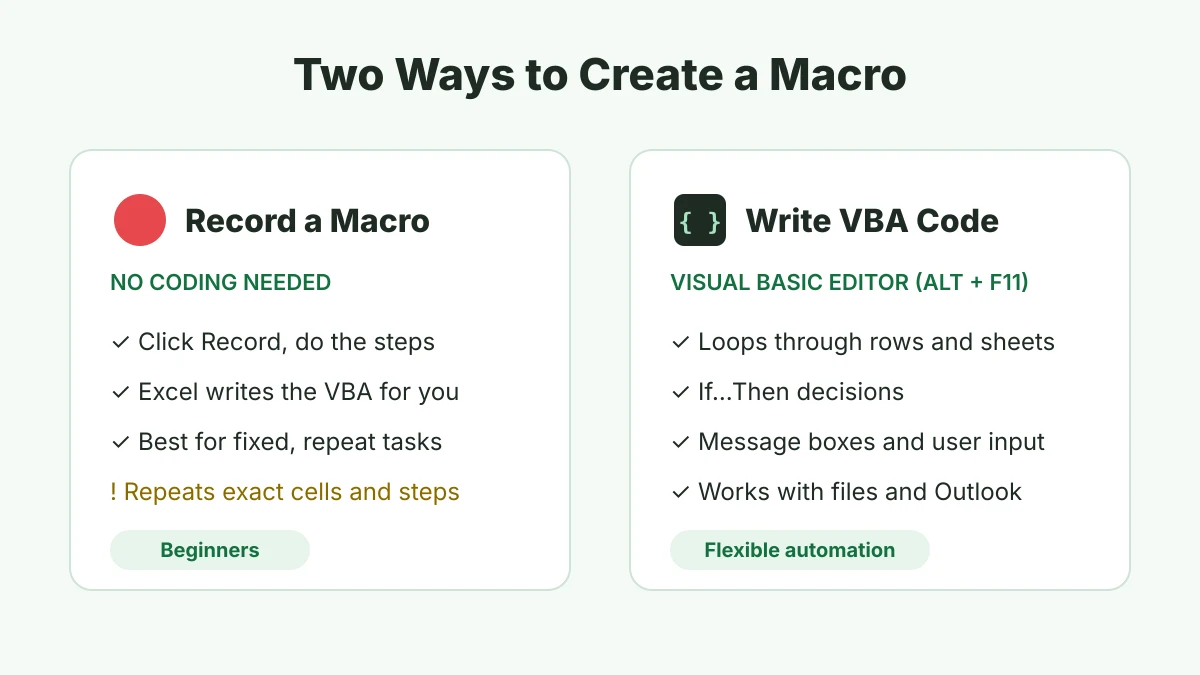
There are two ways to create a macro. Both produce the same thing: VBA code saved in your workbook.
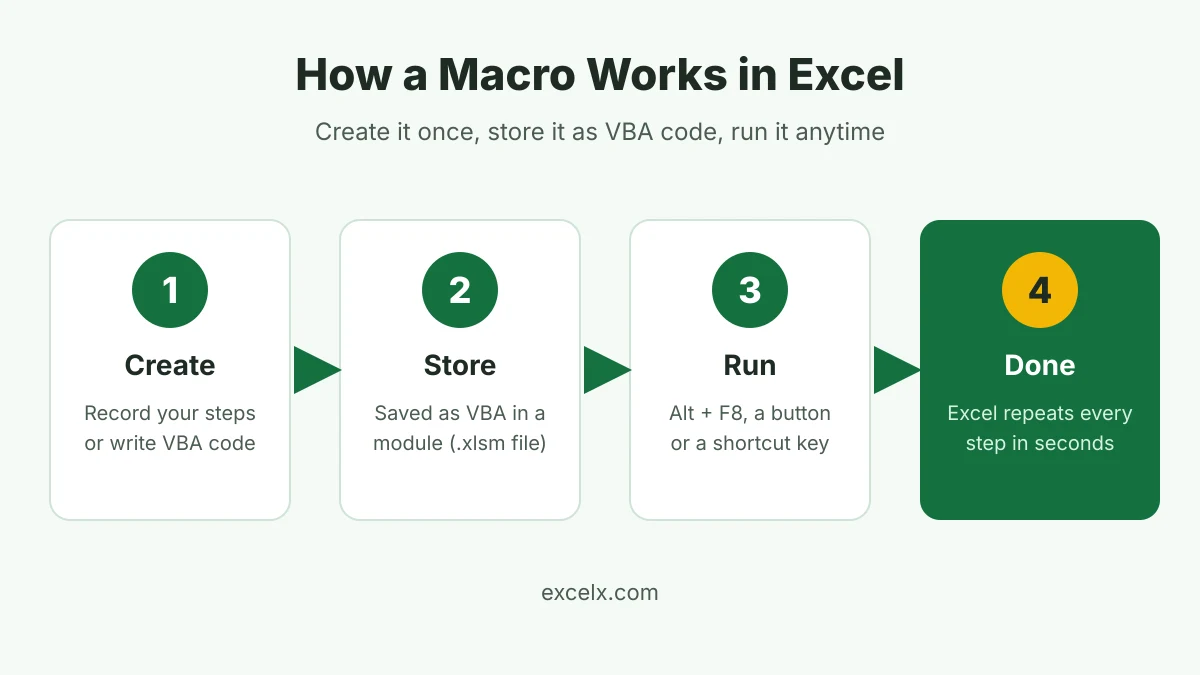
1. Recording a macro (no coding)
The Macro Recorder watches what you do and converts each action into VBA code. You click Record Macro, perform your steps, then click Stop Recording. That’s it.
Recording is the best starting point for beginners. It works well for fixed, repeatable steps like formatting, sorting, or applying filters.
2. Writing a macro in VBA (coding)
You can also type VBA code directly in the Visual Basic Editor (press Alt + F11). Writing code lets you do things the recorder can’t, such as:
- Loop through every row or every sheet
- Make decisions with If…Then logic
- Show message boxes or ask the user for input
- Work with other files, folders, or Outlook
Most people start by recording, then open the code to learn how it works and tweak it.
Where are macros stored?
Macros live inside modules in the workbook’s VBA project. You choose where to store a macro when you record it:
| Store macro in | Available in |
|---|---|
| This Workbook | Only the current file |
| New Workbook | A new file that opens alongside |
| Personal Macro Workbook | Every workbook you open on your computer (saved in PERSONAL.XLSB) |
What Can You Do with Macros? (Real Examples)
Any task you repeat in Excel is a good candidate for a macro. Here are common examples by job type:
| Task | What the macro does | Who uses it |
|---|---|---|
| Format a report | Applies fonts, colors, borders, column widths and number formats in one click | Analysts, managers |
| Clean imported data | Deletes blank rows, trims extra spaces, removes duplicates | Data entry, finance |
| Combine files | Copies data from many workbooks or sheets into one master sheet | Finance, operations |
| Split data | Creates a separate sheet or file for each region, customer or salesperson | Sales, HR |
| Create PDFs | Saves each sheet or invoice as a PDF with the right file name | Accounts, admin |
| Send emails | Emails a report or attachment through Outlook | Managers, sales |
| Refresh and update | Refreshes PivotTables, queries and charts in the right order | Reporting teams |
| Protect sheets | Locks or unlocks every sheet in a workbook at once | Anyone sharing files |
A task that takes 15 minutes by hand, done every working day, adds up to about 60 hours a year. A macro can cut that to a few seconds per run.
Benefits and Limitations of Excel Macros
Why use macros?
- Save time: Tasks that take minutes run in seconds.
- Fewer mistakes: A macro does the steps the same way every time.
- Consistency: Everyone on the team gets identically formatted reports.
- Do more than formulas: Macros can create sheets, save files, and send emails.
- No coding to start: The Macro Recorder writes the code for you.
Limitations to know
- You can’t undo a macro. Ctrl + Z won’t reverse what a macro did, so save your file or test on a copy first.
- Recorded macros are rigid. They repeat exact cell addresses unless you use relative references or edit the code.
- Security warnings. Excel disables macros by default, and blocks macros in files downloaded from the internet.
- Special file format. You must save as a macro-enabled workbook (.xlsm), or the macros are deleted.
- Not everywhere. VBA macros don’t run in Excel for the web or the Excel mobile apps. Excel for Mac supports them.
Example: Create Your First Macro in 5 Steps
Let’s record a simple macro that formats a header row.
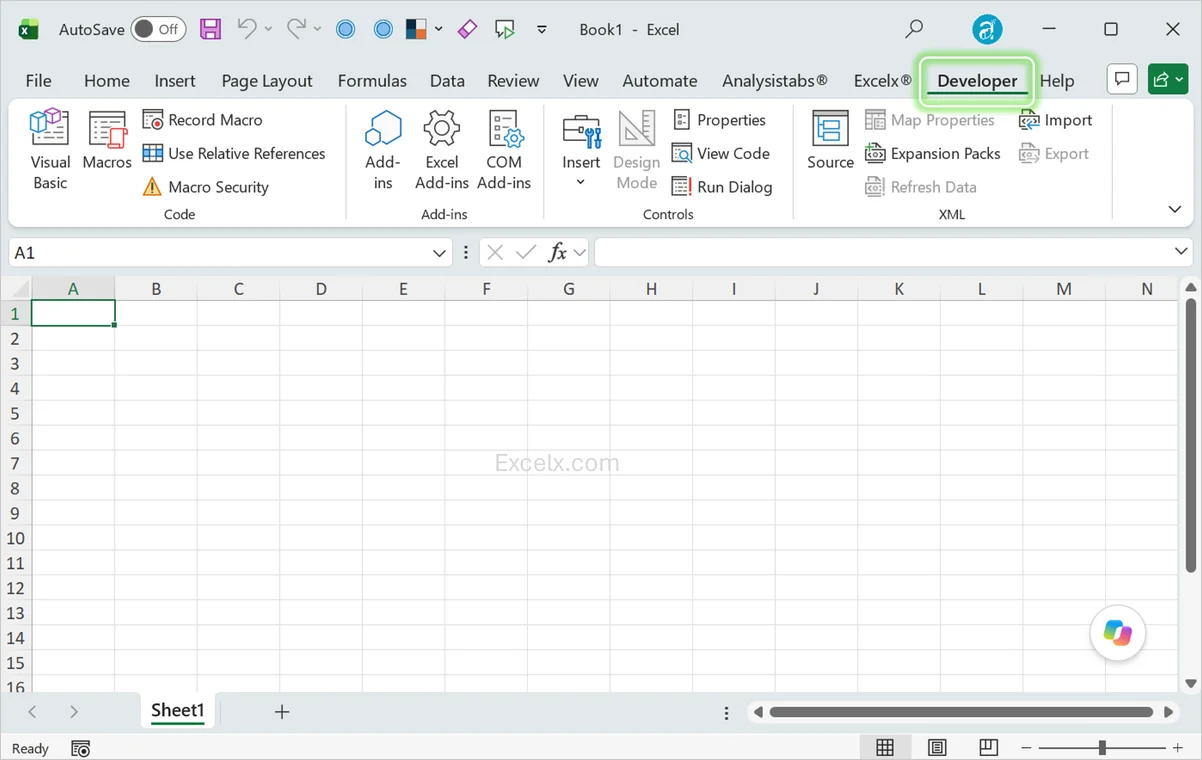
- Show the Developer tab. Go to File > Options > Customize Ribbon, tick Developer, and click OK.
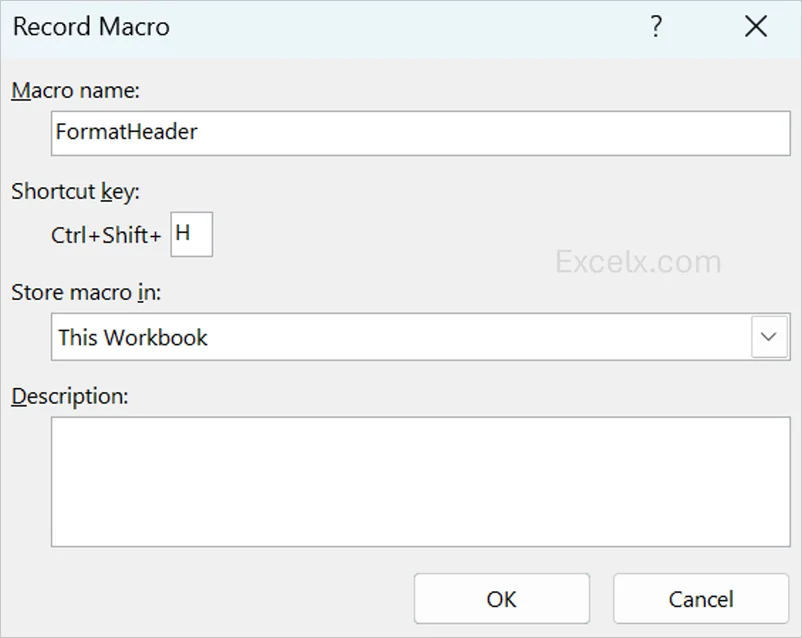
- Start recording. On the Developer tab, click Record Macro. Name it
FormatHeader(no spaces), optionally set a shortcut such as Ctrl + Shift + H, and click OK. - Do the steps. Select row 1, click Bold, add a fill color, and turn on Wrap Text.
- Stop recording. Click Stop Recording on the Developer tab.
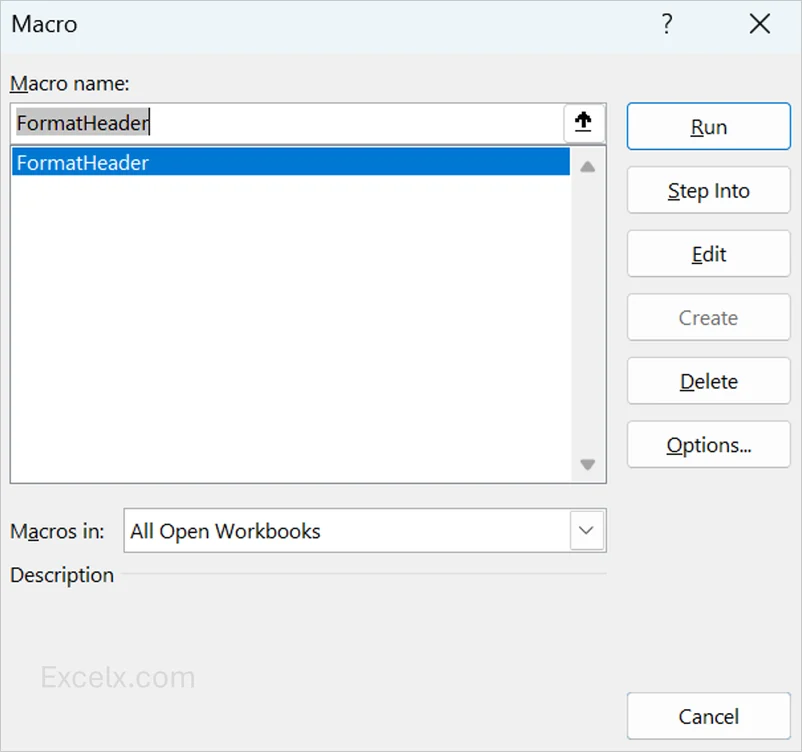
- Run it. Open another sheet, press Alt + F8, select
FormatHeader, and click Run. Row 1 is formatted instantly.
What the recorded code looks like
Press Alt + F11 to open the Visual Basic Editor. You’ll see code similar to this:
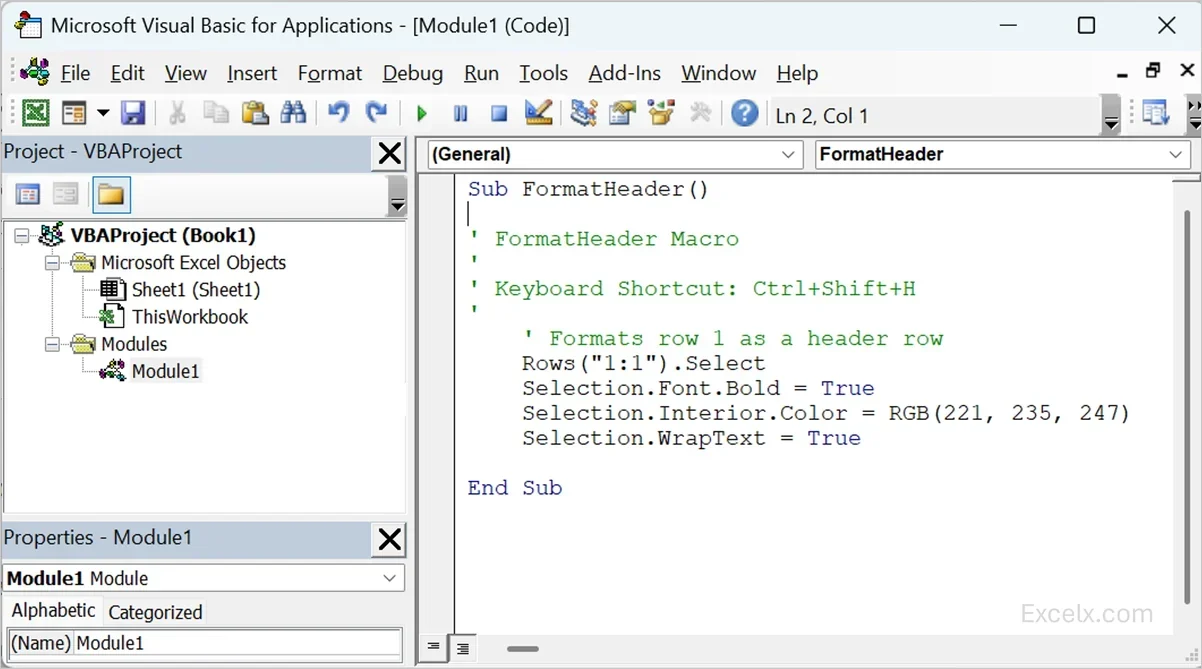
Sub FormatHeader()
    ' Formats row 1 as a header row
    Rows("1:1").Select
    Selection.Font.Bold = True
    Selection.Interior.Color = RGB(221, 235, 247)
    Selection.WrapText = True
End Sub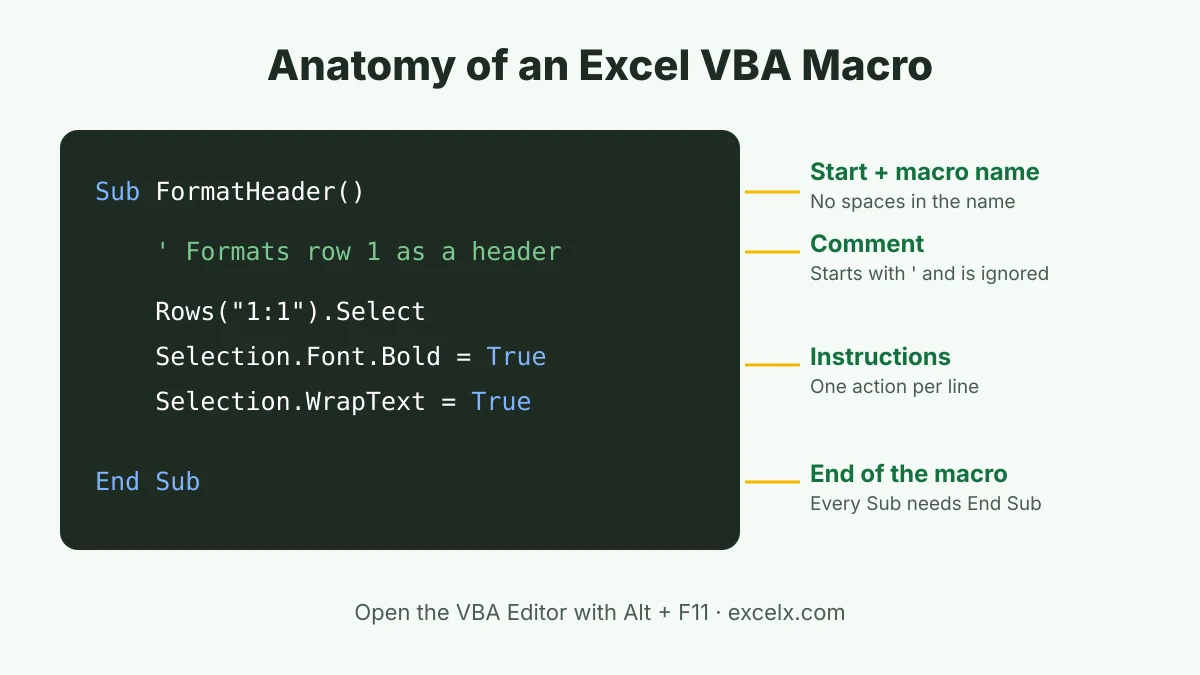
Every macro starts with Sub and the macro’s name, and ends with End Sub. Each line in between is one instruction. Lines starting with an apostrophe (‘) are comments that Excel ignores.
For a full walkthrough, see How to Create Macros in Excel.
Are Excel Macros Safe?
Macros you create yourself are safe. Macros in files from other people can be dangerous, because VBA can delete files, change settings or download malware. That’s why Excel disables macros by default.
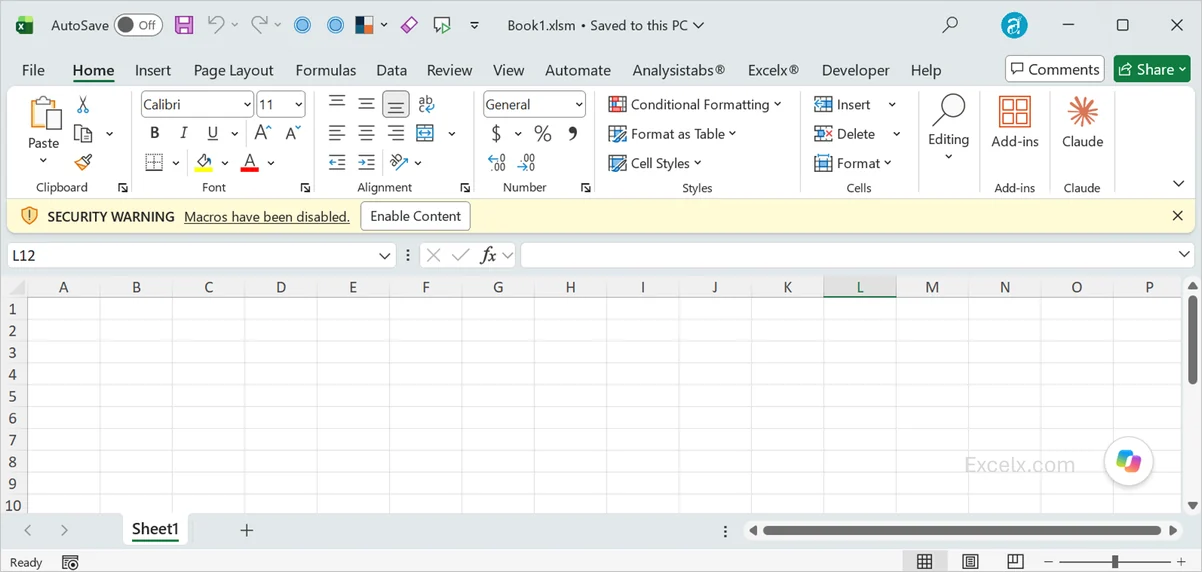
Follow these rules:
- Only enable macros in files you trust. When you see the yellow “Security Warning: Macros have been disabled” bar, click Enable Content only if you know where the file came from.
- Expect a red “Blocked” banner on downloaded files. Microsoft blocks macros in files from the internet or email attachments. See How to Unblock Macros in Excel.
- Keep the default security setting: “Disable VBA macros with notification”. See How to Enable Macros in Excel.
Save files with macros in the right format
A regular .xlsx file cannot store macros. If you save a workbook with macros as .xlsx, Excel warns you and then deletes the code.
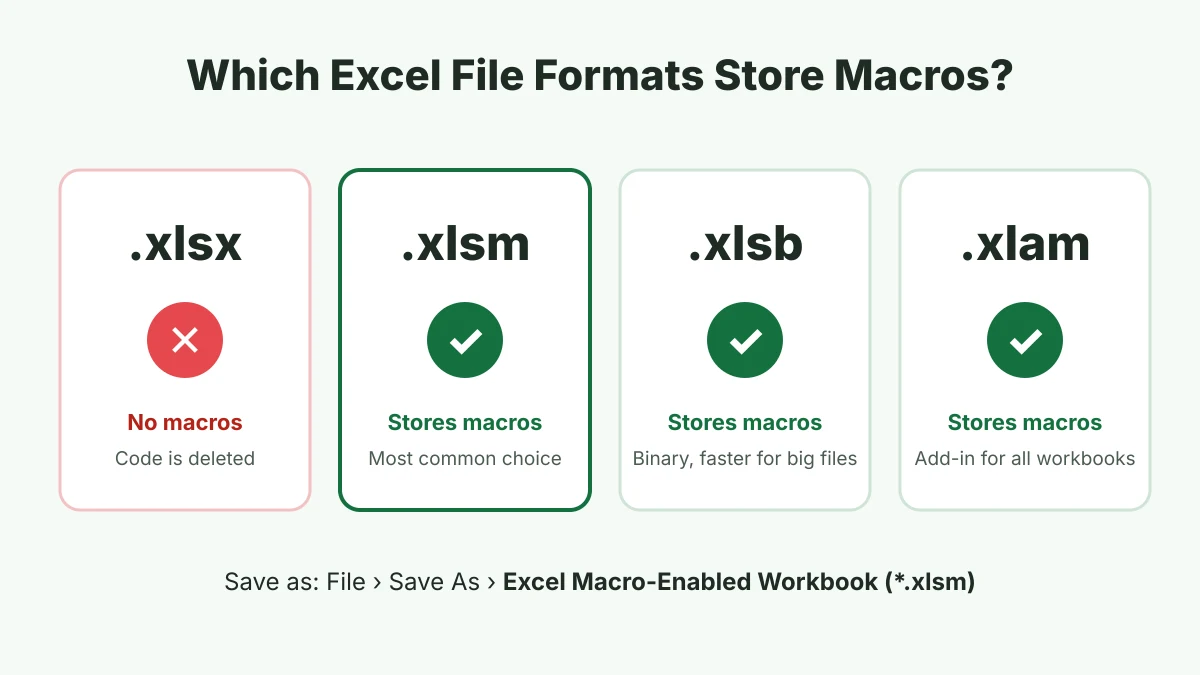
| Format | Stores macros? | Use it for |
|---|---|---|
| .xlsx | No | Normal workbooks |
| .xlsm | Yes | Workbooks with macros (most common) |
| .xlsb | Yes | Large workbooks; binary format that opens and saves faster |
| .xlam | Yes | Add-ins that make macros available in every workbook |
To save: File > Save As, then choose Excel Macro-Enabled Workbook (*.xlsm).
Macros vs Formulas vs Office Scripts
Use a formula to calculate a value, and a macro to perform actions. Office Scripts are Microsoft’s newer automation option for Excel on the web.
| Formulas | VBA macros | Office Scripts | |
|---|---|---|---|
| What it does | Calculates a result in a cell | Performs actions (format, copy, save, email) | Performs actions |
| Language | Excel functions | VBA | TypeScript |
| Runs | Automatically when data changes | When you run it, or on an event | When you run it, or via Power Automate |
| Excel for Windows/Mac | Yes | Yes | Yes, in Microsoft 365 desktop |
| Excel for the web | Yes | No | Yes |
| File format | Any | .xlsm, .xlsb, .xlam | Script saved in OneDrive |
| Best for | Calculations | Desktop automation | Cloud and shared workbooks |
Frequently Asked Questions
What is a macro in Excel in simple words?
A macro is a shortcut that does a series of Excel tasks for you. You record your steps once, and the macro repeats them whenever you run it.
Is a macro the same as VBA?
Not exactly. VBA is the programming language, and a macro is a program written in it. Every Excel macro is VBA code, whether you recorded it or typed it.
Do I need to know coding to use macros?
No. The Macro Recorder creates macros without any coding. Learning basic VBA helps when you want macros that loop, make decisions, or adapt to different data.
Where do I find macros in Excel?
Press Alt + F8, or go to View > Macros or Developer > Macros. To see the code, press Alt + F11.
Why are my macros disabled?
Excel disables macros by default for security, and blocks them in files downloaded from the internet. Click Enable Content for trusted files, or unblock the file in its Properties.
Can macros run in Excel Online or on mobile?
No. VBA macros run only in desktop Excel for Windows and Mac. In Excel for the web, use Office Scripts instead.
Are macros still used in 2026?
Yes. VBA remains fully supported in desktop Excel and is widely used in finance, accounting and reporting. Office Scripts and Power Automate are alternatives for cloud-based workflows.
Conclusion
A macro in Excel is a saved set of steps, written in VBA, that Excel can repeat for you in seconds. You can record one without coding, run it with a click or shortcut, and save hours on repetitive work. Start by recording a simple formatting macro, then open the code to see how it works.