
You recorded a macro, saved your workbook, and the next day the macro was gone. It happens to almost every Excel beginner, and the cause is always the same: the file was saved as a normal .xlsx workbook, which can’t store macros.
The fix is to save it as a macro-enabled workbook (.xlsm). Here’s how.
Quick Answer: Save a Workbook with Macros in 4 Steps
- Press F12 (or go to File > Save As > Browse).
- Open the Save as type list.
- Choose Excel Macro-Enabled Workbook (*.xlsm).
- Click Save.
Your macros are now saved with the file. Open the .xlsm file next time, not the old .xlsx copy.
In this guide
- What is an .xlsm file?
- Save as .xlsm on Windows and Mac
- The macro-free workbook warning
- Get your macros back
- xlsm vs xlsb vs other formats
- Make .xlsm the default
- Save as .xlsm with VBA
- FAQs
What Is an .xlsm File?
An .xlsm file is an Excel workbook that can store macros (VBA code). The “m” stands for macro. It looks and works exactly like a normal workbook, with the same sheets, formulas and charts, plus a VBA project that holds your macros.
Why .xlsx deletes your macros
Since Excel 2007, Microsoft has split workbooks into two types:
| .xlsx | .xlsm | |
|---|---|---|
| Stores macros (VBA)? | No | Yes |
| Icon | Plain Excel icon | Excel icon with an exclamation mark |
| Security warnings | None | Macros disabled until you enable them |
| Best for | Sharing data safely | Workbooks that automate tasks |
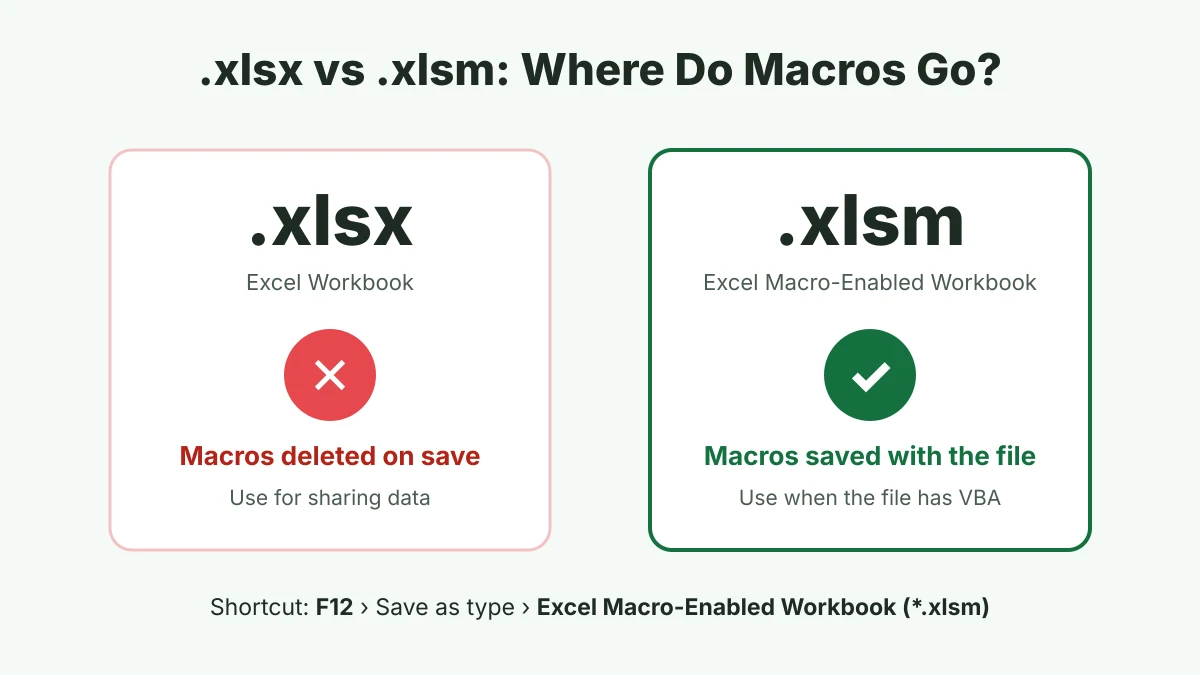
The split is a security feature. Anyone opening an .xlsx file knows it can’t contain macros, so it can’t run harmful code. That’s also why Excel removes macros when you save to .xlsx: the format has nowhere to keep them.
How to Save as .xlsm in Excel for Windows
- Open the workbook that contains your macros.
- Press F12 to open the Save As dialog. (Or click File > Save As > Browse.)
- Choose the folder and type a File name.
- Click the Save as type drop-down.
- Select Excel Macro-Enabled Workbook (*.xlsm).
- Click Save.
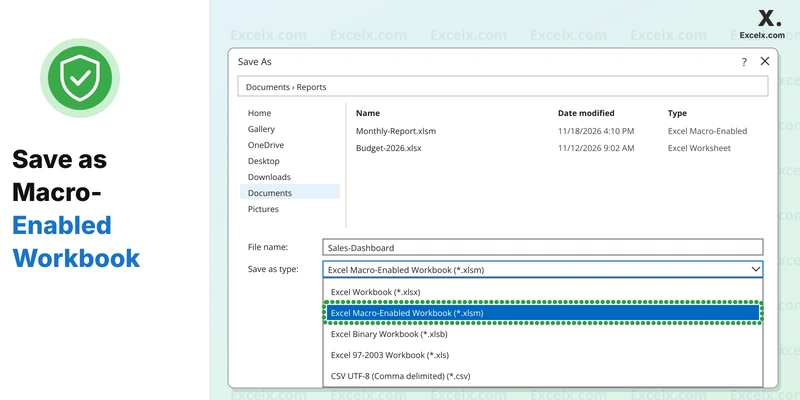
The title bar now shows the .xlsm extension, and your macros are saved inside the file.
Tip: Don’t rename a file from .xlsx to .xlsm in File Explorer. Changing the extension doesn’t convert the file, and Excel will refuse to open it with a “file format or file extension is not valid” error. Always use Save As.
How to save as .xlsm in Excel for Mac
- Go to File > Save As (or press Shift + Command + S).
- Open the File Format list.
- Choose Excel Macro-Enabled Workbook (.xlsm).
- Click Save.
What about Excel for the web?
Excel for the web can open .xlsm files but can’t run or edit VBA macros. To save or work on macros, open the file in the Excel desktop app with Editing > Open in Desktop App.
“The Following Features Cannot Be Saved in Macro-Free Workbooks”
If you press Ctrl + S on a workbook with macros that’s still an .xlsx file, Excel shows this warning:
The following features cannot be saved in macro-free workbooks: • VB project. To save a file with these features, click No, and then choose a macro-enabled file type in the File Type list. To continue saving as a macro-free workbook, click Yes.
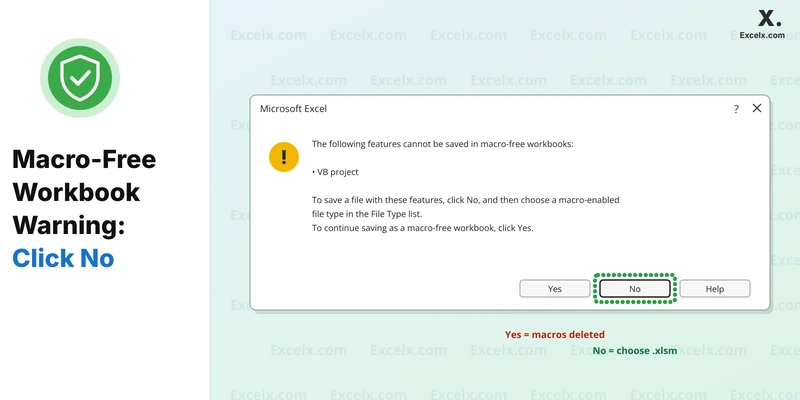
The buttons are easy to mix up:
| Button | What happens |
|---|---|
| Yes | Saves as .xlsx and deletes your macros from the saved file |
| No | Stops the save so you can choose a macro-enabled format (this is the one you want) |
| Help | Opens Microsoft’s help page about file formats |
When you see this warning, click No. If the Save As dialog doesn’t open, press F12. Then pick Excel Macro-Enabled Workbook (*.xlsm) and click Save.
Accidentally Saved as .xlsx? How to Get Your Macros Back
Don’t close the workbook yet. Try these in order:
- If the workbook is still open: the macros are often still loaded in memory. Press Alt + F11 to check. If you can see your code, press F12 right away and save as .xlsm.
- If you still have the original .xlsm file: open that copy instead. Saving as .xlsx creates a new file and leaves the old one untouched.
- If the file is on OneDrive or SharePoint: go to File > Info > Version History and restore a version from before the save.
- Copy the code from a backup: open any older copy, press Alt + F11, and copy the modules into your current workbook. Then save as .xlsm.
If none of these work, the macros are gone from that file, and you’ll need to record or write them again. Keep a backup of important macro workbooks, or store reusable macros in your Personal Macro Workbook so they never depend on one file.
Which Macro-Enabled Format Should You Use?
.xlsm is the right choice for most people. Excel has four other formats that also store macros, each for a specific job:
| Format | Name in Save As list | Use it when |
|---|---|---|
| .xlsm | Excel Macro-Enabled Workbook | Almost always: everyday workbooks with macros |
| .xlsb | Excel Binary Workbook | Very large files: opens and saves faster, and files are smaller |
| .xltm | Excel Macro-Enabled Template | You want a reusable template with macros built in |
| .xlam | Excel Add-in | You want macros or custom functions available in every workbook |
| .xls | Excel 97-2003 Workbook | Only for very old Excel versions; limited to 65,536 rows |
xlsm vs xlsb: which is better?
Both store macros. .xlsb saves data in a binary format, so big workbooks are often smaller and faster to open. .xlsm is XML-based, so more non-Excel tools and apps can open and read it. Choose .xlsb for heavy files you only use in Excel, and .xlsm for everything else.
Make .xlsm the Default Save Format
If you work with macros every day, tell Excel to save new workbooks as .xlsm automatically:
- Go to File > Options > Save.
- In Save files in this format, choose Excel Macro-Enabled Workbook.
- Click OK.
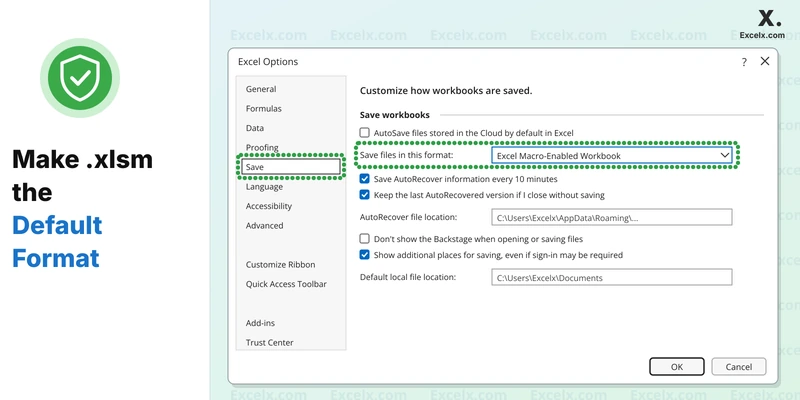
New workbooks now save as .xlsm by default. Existing .xlsx files keep their format until you use Save As.
Tip: Macros you want in every workbook belong in the Personal Macro Workbook (PERSONAL.XLSB). When you record a macro, choose Personal Macro Workbook in the Store macro in box. Click Save when Excel asks about it on closing, and it loads every time Excel starts.
How to Save as .xlsm with VBA
If a macro saves a copy of the workbook, you must give the correct FileFormat. Otherwise you’ll get the error “VB projects and XLM Sheets cannot be saved in a macro-free workbook”.
Sub SaveAsXlsmWithDate()
    ' Saves the workbook as a dated .xlsm file in the same folder
    Dim newPath As String
    newPath = ThisWorkbook.Path & "\" & "Report-" & Format(Date, "yyyy-mm-dd") & ".xlsm"
    ThisWorkbook.SaveAs Filename:=newPath, _
        FileFormat:=xlOpenXMLWorkbookMacroEnabled
End Sub
Use the matching constant for each format:
| Format | FileFormat constant | Value |
|---|---|---|
| .xlsm | xlOpenXMLWorkbookMacroEnabled | 52 |
| .xlsb | xlExcel12 | 50 |
| .xlsx (removes macros) | xlOpenXMLWorkbook | 51 |
The file extension in the name must match the format, or Excel shows an error when you open the file. Save the workbook once before running the macro, so ThisWorkbook.Path isn’t empty.
Frequently Asked Questions
What is an xlsm file?
An .xlsm file is an Excel macro-enabled workbook. It works like a normal workbook but can also store VBA macros. The “m” stands for macro.
Why did my macros disappear after saving?
The workbook was saved as .xlsx, which can’t store macros. Excel removes them when you click Yes on the macro-free warning. Always save workbooks with macros as .xlsm.
What’s the difference between xlsx and xlsm?
Both are modern Excel workbooks. .xlsm can store macros; .xlsx can’t. Use .xlsx for sharing data and .xlsm when the file contains VBA code.
Is an xlsm file safe to open?
An .xlsm file you created is safe. Files from others can contain harmful macros, so Excel disables them until you click Enable Content. Only enable macros in files you trust.
Can I convert xlsm to xlsx?
Yes. Use File > Save As and choose Excel Workbook (*.xlsx), then click Yes on the warning. The macros are removed from the new file; the original .xlsm keeps them.
Can I just rename .xlsx to .xlsm?
No. Renaming doesn’t change the file format, and Excel will report that the file format or extension isn’t valid. Use Save As instead.
Can Google Sheets open xlsm files?
Google Sheets can open the data in an .xlsm file, but it can’t run VBA macros. Use Excel desktop for macros.
Conclusion
To keep your macros, save the workbook as an Excel Macro-Enabled Workbook (.xlsm): press F12, choose .xlsm in Save as type, and click Save. If Excel warns about macro-free workbooks, click No, not Yes. For very large files, .xlsb is a faster alternative.