
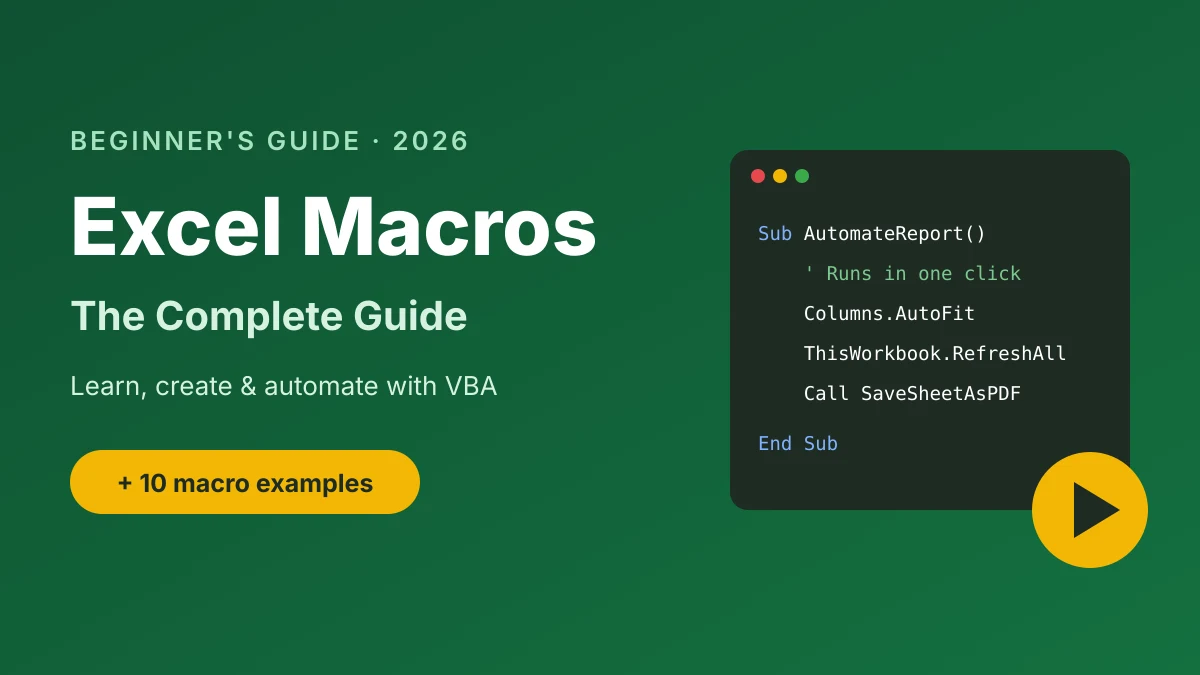
Excel macros automate repetitive tasks. A macro records or stores a set of steps as VBA code, then replays them with one click or a keyboard shortcut. Formatting a report, cleaning data or saving PDFs can take seconds instead of minutes.
This guide is your starting point for learning Excel macros. It covers what macros are, how to set Excel up, how to create and run your first macro, and 10 ready-to-use macro examples. Each section links to a detailed step-by-step tutorial.
In this guide
- What is a macro in Excel?
- Your learning path
- Step 1: Set up Excel for macros
- Step 2: Create your first macro
- Step 3: Run, edit and delete macros
- Save workbooks with macros
- 10 useful Excel macro examples
- All Excel macro tutorials
- FAQs
What Is a Macro in Excel?
A macro is a saved set of instructions that performs a task automatically. Every Excel macro is written in VBA (Visual Basic for Applications), but you don’t need to code. Excel’s Macro Recorder watches what you do and writes the VBA for you.
Read the full explanation, with examples and a comparison with formulas: What Is a Macro in Excel?
Your Excel Macros Learning Path
Follow these tutorials in order. Each one takes 5 to 10 minutes.
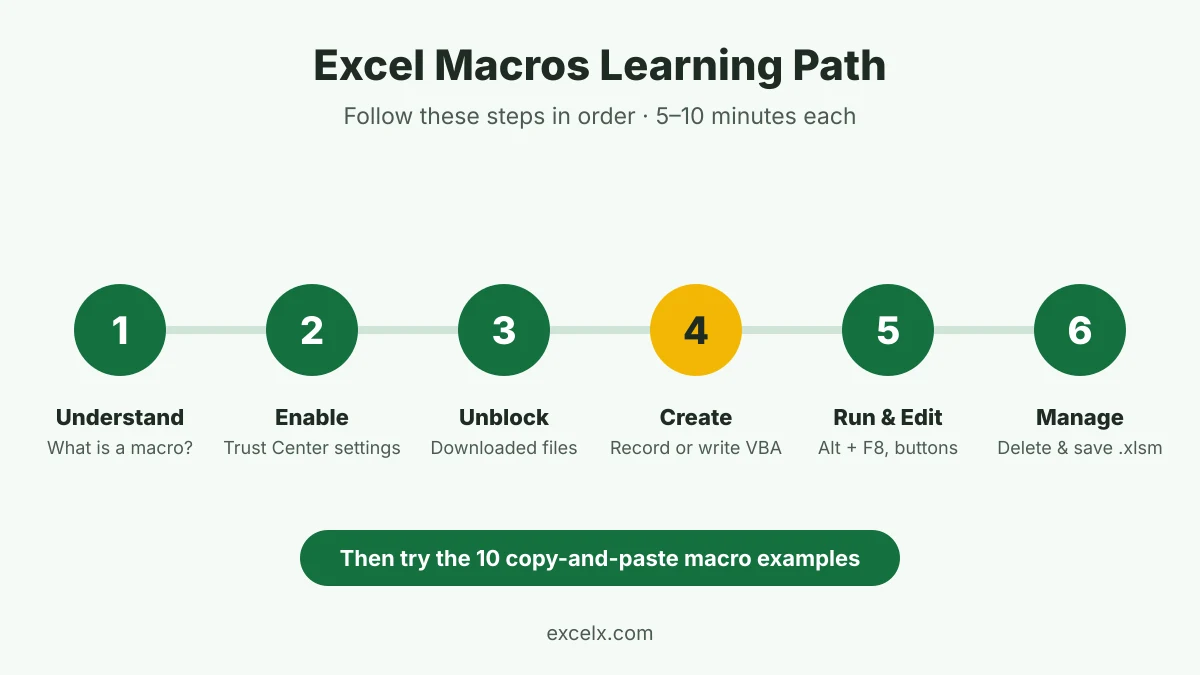
| Step | What you’ll learn | Tutorial |
|---|---|---|
| 1 | What macros are and how they work | What Is a Macro in Excel? |
| 2 | Turn on macros safely in the Trust Center | How to Enable Macros in Excel |
| 3 | Fix “Microsoft has blocked macros from running” | How to Unblock Macros in Excel |
| 4 | Record your first macro or write VBA | How to Create Macros in Excel |
| 5 | Save your workbook so macros aren’t lost | How to Save a Macro-Enabled Workbook (.xlsm) |
| 6 | Run macros with buttons and shortcuts | How to Use Macros in Excel |
| 7 | Change a macro’s VBA code | How to Edit Macros in Excel |
| 8 | Remove macros you no longer need | How to Delete Macros in Excel |
Step 1: Set Up Excel for Macros
Show the Developer tab
All macro tools live on the Developer tab, which is hidden by default. Go to File > Options > Customize Ribbon, tick Developer, and click OK.
Enable macros
Excel disables macros by default for security. Keep the setting Disable VBA macros with notification, then click Enable Content on files you trust. Full steps: How to Enable Macros in Excel.
Unblock downloaded files
Files from the internet or email show a red SECURITY RISK bar, and Excel won’t let you enable their macros. Right-click the file, choose Properties, and tick Unblock. Full steps and fixes: How to Unblock Macros in Excel.
Step 2: Create Your First Macro
There are two ways to create a macro:
- Record it: Click Developer > Record Macro, do your steps, then click Stop Recording. No coding needed.
- Write it: Press Alt + F11 to open the Visual Basic Editor, insert a module, and type VBA code. This lets you add loops, conditions and messages.
Most beginners record first, then open the code to learn from it. Step-by-step guide with 10 examples: How to Create Macros in Excel.
Step 3: Run, Edit and Delete Macros
| Task | Quickest way | Full tutorial |
|---|---|---|
| Run a macro | Press Alt + F8, select the macro, click Run | How to Use Macros |
| Edit a macro | Press Alt + F8, select the macro, click Edit | How to Edit Macros |
| Delete a macro | Press Alt + F8, select the macro, click Delete | How to Delete Macros |
You can also run a macro with a keyboard shortcut, a button on the sheet, or the Quick Access Toolbar.
Save Workbooks with Macros
A normal .xlsx file can’t store macros. If you save as .xlsx, Excel deletes your code. Always choose File > Save As > Excel Macro-Enabled Workbook (*.xlsm).
To use a macro in every workbook, store it in your Personal Macro Workbook (PERSONAL.XLSB). Choose it in the Store macro in box when you record.
10 Useful Excel Macro Examples (Copy and Paste)
To use any example: press Alt + F11, click Insert > Module, paste the code, and press F5 to run it. Save your file first. You can’t undo a macro with Ctrl + Z.
1. Delete blank rows
Deletes every completely empty row in the used range of the active sheet.
Sub DeleteBlankRows()
    Dim r As Long
    With ActiveSheet.UsedRange
        For r = .Rows.Count To 1 Step -1
            If Application.WorksheetFunction.CountA(.Rows(r)) = 0 Then
                .Rows(r).EntireRow.Delete
            End If
        Next r
    End With
End Sub
2. AutoFit all columns
Resizes every column on the active sheet to fit its contents.
Sub AutoFitAllColumns()
    ActiveSheet.UsedRange.Columns.AutoFit
End Sub
3. Unhide all sheets
Makes every hidden worksheet in the workbook visible.
Sub UnhideAllSheets()
    Dim ws As Worksheet
    For Each ws In ThisWorkbook.Worksheets
        ws.Visible = xlSheetVisible
    Next ws
End Sub
4. Protect all sheets
Protects every sheet with the same password. Change “MyPassword” first, and remember it.
Sub ProtectAllSheets()
    Dim ws As Worksheet
    For Each ws In ThisWorkbook.Worksheets
        ws.Protect Password:="MyPassword"
    Next ws
End Sub
5. Convert formulas to values
Replaces formulas in the selected range with their results. Select one block of cells first.
Sub FormulasToValues()
    Selection.Value = Selection.Value
End Sub
6. Remove extra spaces
Trims leading and trailing spaces from text in the selected cells. Formulas are left alone.
Sub TrimSpaces()
    Dim c As Range
    For Each c In Selection
        If Not c.HasFormula And VarType(c.Value) = vbString Then
            c.Value = Trim(c.Value)
        End If
    Next c
End Sub
7. Highlight duplicates
Fills duplicate values in the selected range with light red.
Sub HighlightDuplicates()
    Dim c As Range
    For Each c In Selection
        If c.Value <> "" Then
            If Application.WorksheetFunction.CountIf(Selection, c.Value) > 1 Then
                c.Interior.Color = RGB(255, 199, 206)
            End If
        End If
    Next c
End Sub
8. Save the active sheet as PDF
Saves the current sheet as a PDF in the same folder as the workbook. Save the workbook once before running it.
Sub SaveSheetAsPDF()
    ActiveSheet.ExportAsFixedFormat Type:=xlTypePDF, _
        Filename:=ThisWorkbook.Path & "\" & ActiveSheet.Name & ".pdf"
End Sub
9. Insert a timestamp
Puts the current date and time in the selected cell as a fixed value.
Sub InsertTimestamp()
    ActiveCell.Value = Now
    ActiveCell.NumberFormat = "dd-mmm-yyyy hh:mm"
End Sub
10. Refresh all data
Refreshes every PivotTable, query and data connection in the workbook.
Sub RefreshAllData()
    ThisWorkbook.RefreshAll
End Sub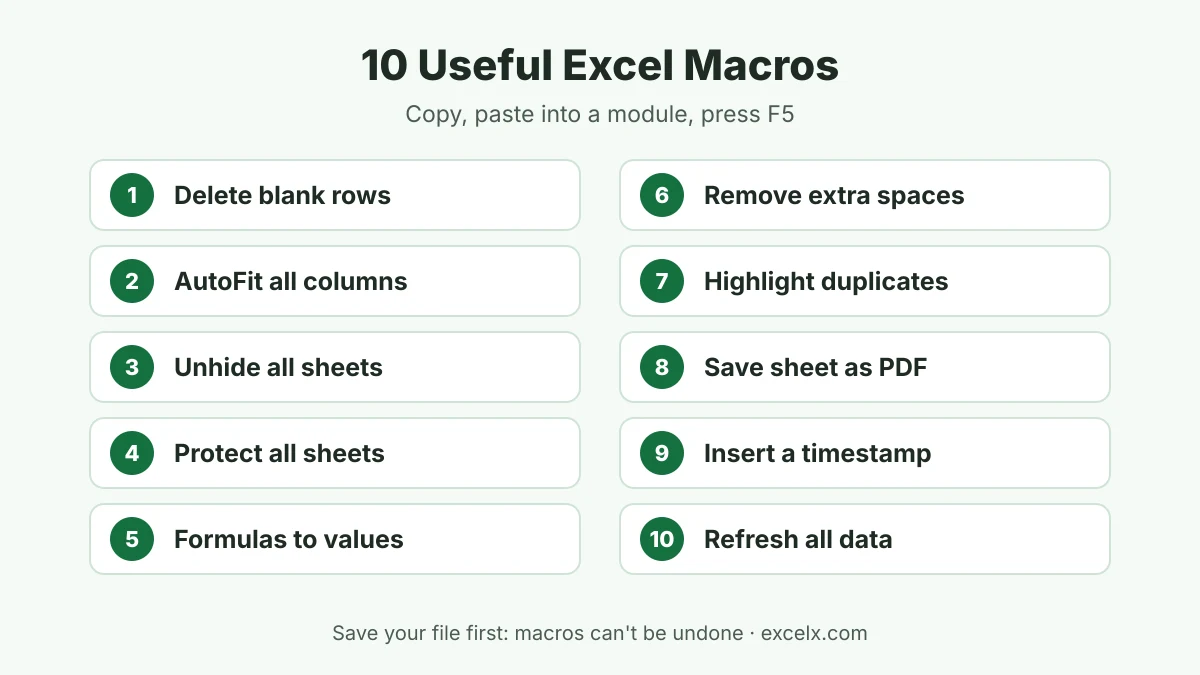
All Excel Macro Tutorials
Browse every macros and VBA tutorial on Excelx.com below, newest first.
How to Save a Macro-Enabled Workbook in Excel (.xlsm)
You recorded a macro, saved your workbook, and the next day the macro was gone. It happens to almost every

What Is a Macro in Excel? Meaning, Uses & Examples
Do you format the same report every Monday? Copy data between the same sheets every month? Delete the same blank
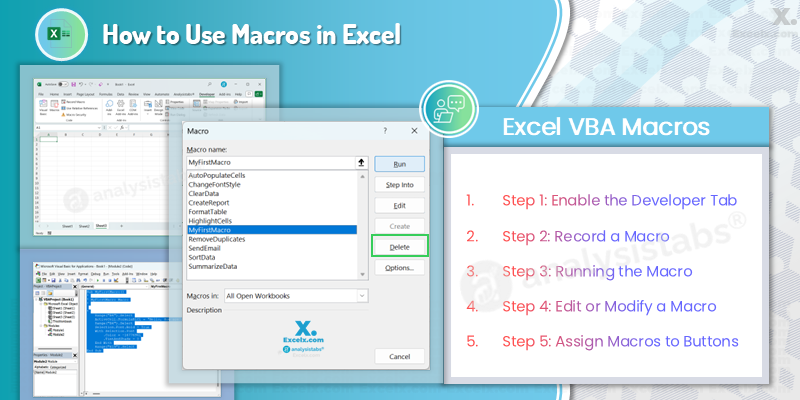
How to Use Macros in Excel: A Complete Guide for Beginners
Macros in Excel are one of the most powerful tools available to automate repetitive tasks, streamline workflows, and boost productivity.
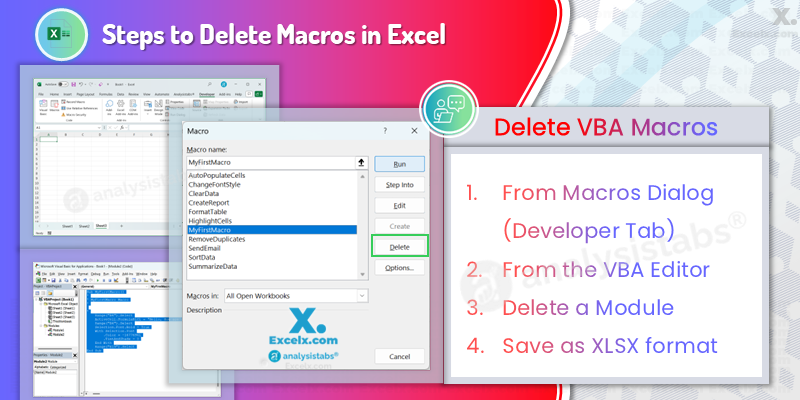
How to Delete Macros in Excel: A Complete Guide
Deleting macros in Excel is often necessary when you no longer need them or want to clean up your workbook.
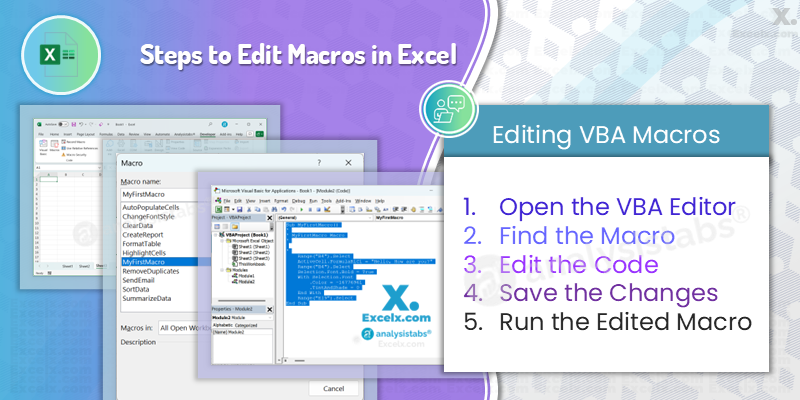
How to Edit Macros in Excel: A Step-by-Step Guide
Editing macros in Excel allows you to customize and refine automated tasks, making your workflow even more efficient. Whether you
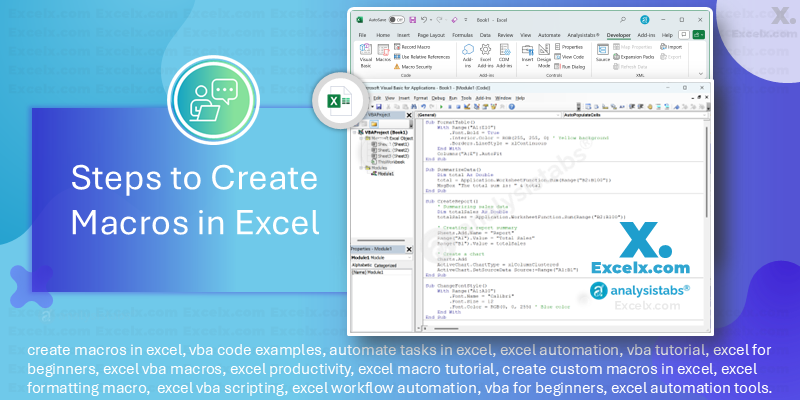
How to Create Macros in Excel: A Step-by-Step Guide to Automating Tasks
Creating macros in Excel is one of the best ways to automate repetitive tasks and enhance your productivity. Whether you're
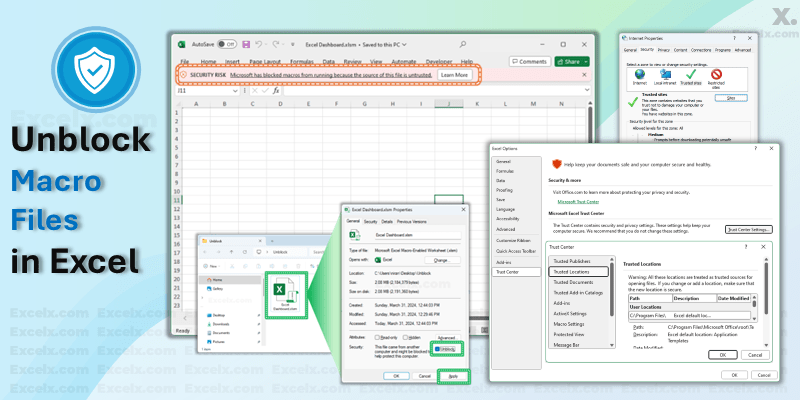
Microsoft Has Blocked Macros in Excel? How to Unblock Them (2026)
Did you open an Excel file and see this red bar? SECURITY RISK Microsoft has blocked macros from running because
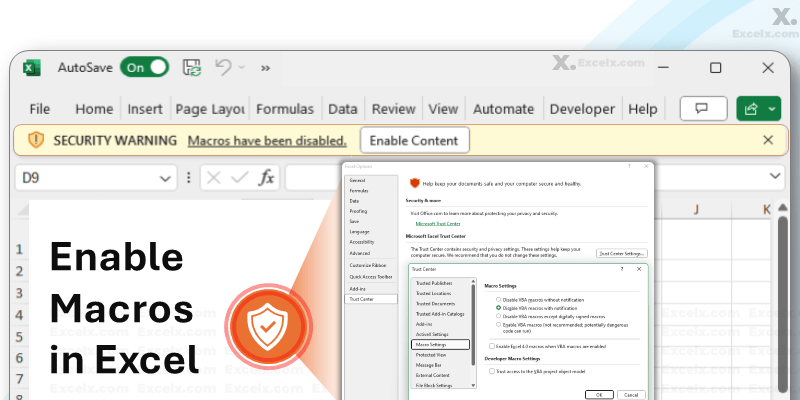
How to Enable Macros in Excel: VBA Guide for Safe Automation
Enabling macros in Excel is an essential skill for users looking to streamline their workflow. In this guide, we will
Excel Macros FAQs
What are macros in Excel used for?
Macros automate repetitive tasks, such as formatting reports, cleaning data, combining sheets, creating PDFs and sending emails. A task you repeat every day can be done in one click.
Do I need to know VBA to use macros?
No. The Macro Recorder creates macros without any coding. Learning basic VBA helps when you want macros that loop, make decisions or work with different data.
How do I enable macros in Excel?
Go to File > Options > Trust Center > Trust Center Settings > Macro Settings and choose Disable VBA macros with notification. Then click Enable Content on files you trust.
Why are macros blocked in my Excel file?
Excel blocks macros in files downloaded from the internet or received by email. Right-click the file, choose Properties, tick Unblock and reopen it.
Which file format should I use for macros?
Save as an Excel Macro-Enabled Workbook (.xlsm). A normal .xlsx file deletes macros when you save.
Can macros run in Excel Online or on a Mac?
Excel for Mac runs VBA macros. Excel for the web and the mobile apps can’t run VBA; use Office Scripts in Excel for the web instead.
Are Excel macros safe?
Macros you write yourself are safe. Macros from unknown sources can contain malware, so only enable macros in files you trust.
Start Automating Excel Today
Start with What Is a Macro in Excel?, then record your first macro with How to Create Macros in Excel. Once you’re comfortable, copy one of the 10 examples above and adapt it to your own work.