
- 🛠️ Core Build
- 1️⃣ Data Table
- 📊 Stacked Bar
- ✨ Axis Inversion
- 📅 Date Bounds
- 📈 Progress Split
- ⚖️ Chart vs Formula
- ⚡ Special Scenarios
- ⭐ Best Practices
- 🔧 Troubleshooting
- ⬇ Practice File
- ❓ FAQs
- 💬 Comments
A Gantt chart is one of the most effective tools for project scheduling, workload planning, and milestone tracking. It turns a static list of tasks into an interactive horizontal bar timeline, allowing project managers and teams to visualize start dates, durations, task dependencies, and deadlines at a glance.
If you have wondered “can you create a Gantt chart in Excel without buying expensive add-ins?”—the answer is yes. While Microsoft Excel has no single “Insert Gantt Chart” button, you can easily make a Gantt chart in Excel using a standard Stacked Bar Chart and a simple formatting trick: making the baseline start-date series invisible. This step-by-step tutorial covers how to build, format, and customize a professional project timeline from a blank spreadsheet.
Excel Gantt Chart Tutorial Overview
In this walkthrough, we build a 10-task project timeline in Microsoft Excel (compatible with Excel 365, Excel 2024, 2021, 2019, 2016, and Excel for Mac). You will learn how to configure task data, invert category axes, set custom date boundaries in days, weeks, and months, split bars into percentage complete progress segments, and handle advanced scenarios like dependencies and subtasks. A free practice workbook is included below.
Looking for Pre-Built Free Gantt Chart Templates?
If you prefer not to configure charts and axis bounds by hand, our free, macro-free Excel template library provides instant daily, weekly, and monthly project schedules powered by dynamic conditional formatting.
How to Make a Gantt Chart in Excel Step by Step
Building a custom project timeline breaks down into two core phases: structuring clean project dates, and converting a stacked bar chart into an executive-ready schedule.
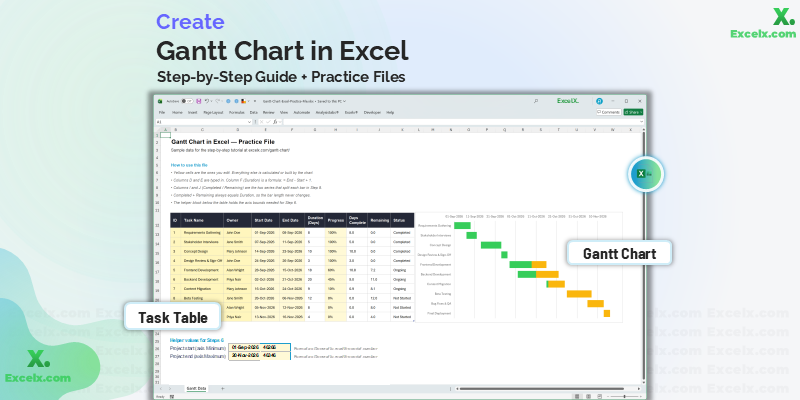
The completed Excel Gantt chart with floating duration bars, date bounds, and progress split
-
Prepare Your Project Data TableSet up three essential columns: Task Name, Start Date, and Duration in days.
-
Populate Dates, Owners, and ProgressInput your real tasks, owners, and completion percentages.
-
Insert a Blank 2D Stacked Bar ChartStart from a blank chart canvas to maintain full control over series assignments.
-
Add the Task Duration SeriesThe duration series forms the visible horizontal timeline bars.
-
Reverse Category Order & Hide Start BarsInvert the vertical axis so tasks read top-to-bottom, and set the start date series to “No Fill”.
-
Fix the Date Axis BoundsConvert calendar dates to serial numbers to remove the empty space before your first task.
-
Widen Bars & Clean Chart ClutterDelete the redundant legend, adjust Gap Width to 30–40%, and enable vertical gridlines.
-
Show Percent Complete Progress BarsSplit duration into Days Complete and Days Remaining to display status on the timeline.
-
Handle Special Cases & Advanced ScenariosManage dependencies, subtasks, week/month scales, and timelines without dates.
Step 1: Set Up and Prepare Your Project Data Table
To create a Gantt chart from Excel, your worksheet requires three primary data columns:
- Task Name: Clear descriptions of deliverables or phases.
- Start Date: The calendar date on which work begins.
- Duration: The active work span in days.
Rule 1: Start Date Must Be Stored as a Serial Date
If your dates default to left-alignment in the cell, Excel is storing them as text strings, and the charting engine cannot plot them along a chronological timeline. Genuine Excel dates align to the right by default. If dates are stored as text, select the column and use Data > Text to Columns > Finish.
Rule 2: Convert Your Range to an Official Excel Table (Ctrl + T)
Select your data cells and press Ctrl + T (or Cmd + T on Mac). When configured as an official Excel Table, adding new subtasks or phases later automatically expands the chart without requiring manual range reassignment.
How to Make a Gantt Chart in Excel with Start and End Dates (Two Dates)
Most project managers prefer tracking schedules using two dates (Start Date and End Date). However, Excel’s stacked bar chart plots task length (duration) rather than a fixed finish date. To calculate Duration automatically, add a calculated column:
= [@[End Date]] - [@[Start Date]] + 1The + 1 ensures the initial start day is included. For example, a task starting on Monday morning and ending Friday afternoon spans 5 full days, not 4. Omitting this makes every bar display one day short.
To skip weekends and calculate business working days only, use the NETWORKDAYS function:
= NETWORKDAYS([@[Start Date]], [@[End Date]])To skip statutory holidays as well, supply an optional holiday calendar range: =NETWORKDAYS([@[Start Date]], [@[End Date]], Holidays_List).
Here is the sample 10-task schedule used throughout this tutorial:
| Task | Start Date | Duration (Days) |
|---|---|---|
| Requirements Gathering | 2026-09-01 | 8 |
| Stakeholder Interviews | 2026-09-07 | 5 |
| Concept Design | 2026-09-14 | 10 |
| Design Review & Sign-Off | 2026-09-24 | 3 |
| Frontend Development | 2026-09-28 | 18 |
| Backend Development | 2026-10-02 | 20 |
| Content Migration | 2026-10-16 | 9 |
| Beta Testing | 2026-10-26 | 12 |
| Bug Fixes & QA | 2026-11-05 | 8 |
| Final Deployment | 2026-11-13 | 4 |
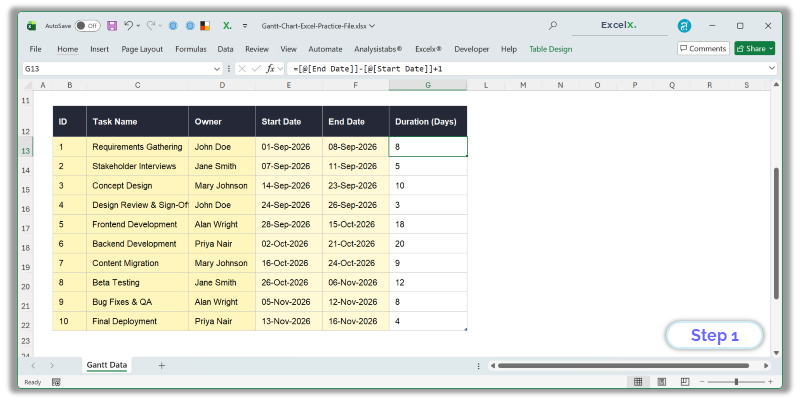
Standardized Gantt data table in Excel with formulas calculating duration
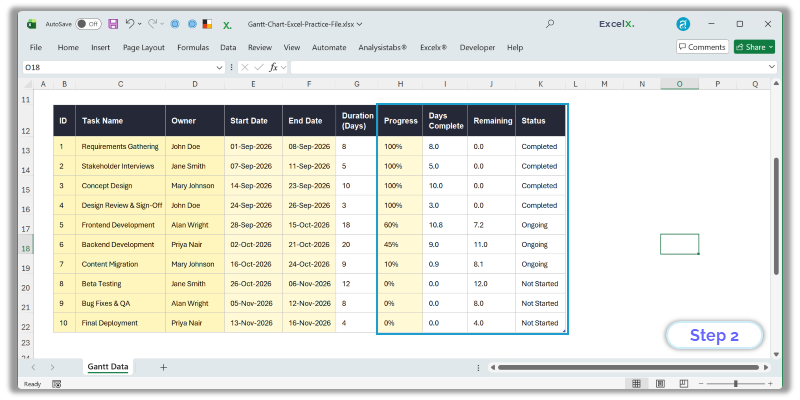
Step 2: Add Subtasks, Owners, and Progress Percentages
You can include tracking columns such as Phase/Subtask, Owner, Percent Complete, and Status alongside your core date columns. Excel plots only the specific columns you bind to the chart engine, leaving the remaining fields available for project management.
| Task | Owner | Start Date | Duration | Progress % | Status |
|---|---|---|---|---|---|
| Requirements Gathering | John Doe | 2026-09-01 | 8 | 100% | Completed |
| Stakeholder Interviews | Jane Smith | 2026-09-07 | 5 | 100% | Completed |
| Concept Design | Mary Johnson | 2026-09-14 | 10 | 100% | Completed |
| Design Review & Sign-Off | John Doe | 2026-09-24 | 3 | 100% | Completed |
| Frontend Development | Alan Wright | 2026-09-28 | 18 | 60% | Ongoing |
| Backend Development | Priya Nair | 2026-10-02 | 20 | 45% | Ongoing |
| Content Migration | Mary Johnson | 2026-10-16 | 9 | 10% | Ongoing |
| Beta Testing | Jane Smith | 2026-10-26 | 12 | 0% | Not Started |
| Bug Fixes & QA | Alan Wright | 2026-11-05 | 8 | 0% | Not Started |
| Final Deployment | Priya Nair | 2026-11-13 | 4 | 0% | Not Started |
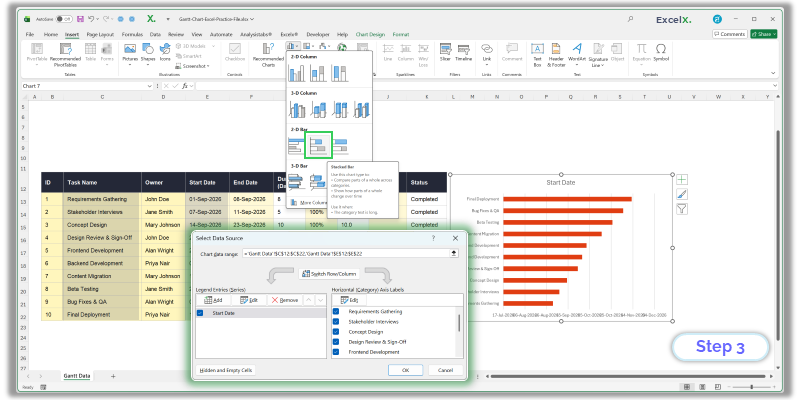
Step 3: Insert a Blank 2D Stacked Bar Chart
To avoid Excel incorrectly guessing how to plot your table columns, insert an empty chart first:
- Click any blank cell outside your data table.
- In the ribbon, go to Insert > Charts > Bar Chart > 2-D Stacked Bar. An empty white box will appear on the sheet.
- Right-click inside the blank box and click Select Data.
- Under Legend Entries (Series), click Add:
- Series name: Click cell
Start Date(table header). - Series values: Select the range of start dates (exclude header).
- Series name: Click cell
- Under Horizontal (Category) Axis Labels on the right, click Edit:
- Select the 10 task names.
- Click OK.
Why Category Axis Labels Sit on the Left
A bar chart is simply an inverted column chart rotated 90 degrees. In Excel dialog boxes, category labels are referred to as “Horizontal (Category) Axis Labels” even though they run vertically down the left side of the chart canvas.
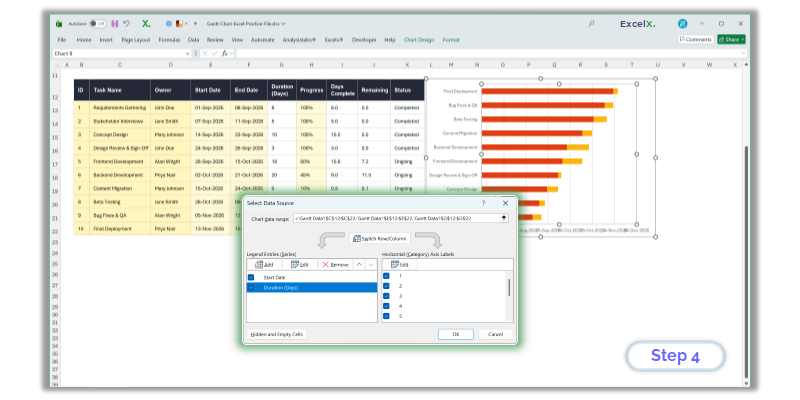
Step 4: Add the Task Duration Series
Next, add the second data series that forms the visible timeline bars:
- Right-click the chart and choose Select Data.
- Under Legend Entries, click Add.
- Series name: Click the
Durationheader cell. - Series values: Select the 10 duration numbers.
- Click OK.
Check the Stacking Order
In the Select Data dialog, Start Date must appear above Duration. If Duration is listed first, use the up/down arrows to swap them. If the order is inverted, the wrong series will disappear in the next step.
Step 5: Reverse the Task Order & Hide Start Date Bars
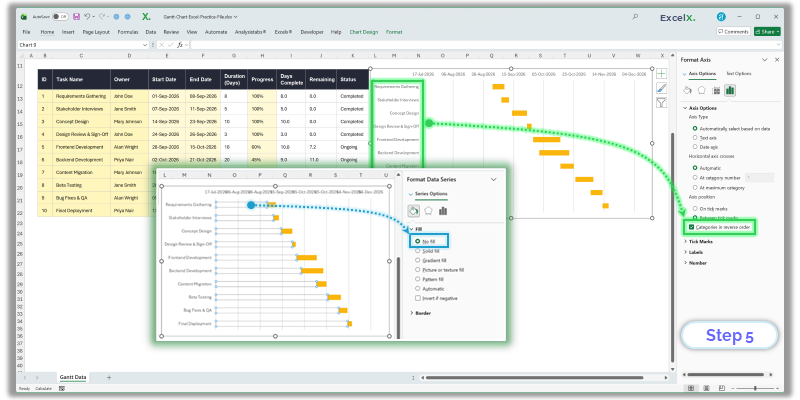
This formatting step converts the stacked bar chart into an authentic Gantt chart:
- Reverse Task Order: Right-click the vertical task name axis, click Format Axis, open Axis Options, and check Categories in reverse order. Excel plots categories bottom-up by default; this reverses the order so Task 1 sits at the top.
- Make the Baseline Spacer Bars Invisible: Click any of the start-date bars (the left-hand bars anchored to the axis). Right-click and select Format Data Series. Set Fill to No Fill and Border to No Line.
The start-date bars remain in the worksheet to offset each task along the timeline, but their transparent fill gives the appearance of floating schedule bars.
Step 6: Fix the Date Axis Bounds (Remove Empty Blank Space)
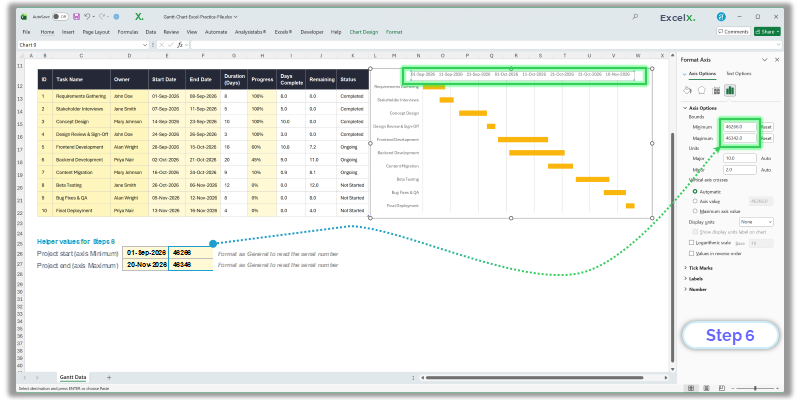
Because Excel defaults its horizontal date axis to day 0 (representing January 1, 1900), the chart will show a wide empty gap before your first task. To align the timeline with your actual schedule, set custom axis bounds using Excel date serial numbers:
- In a blank worksheet cell, type your project start date (
2026-09-01). - Change that cell’s format to General. Excel reveals its internal 5-digit date serial number (e.g.,
46266). Copy this number. - In another cell, calculate the project finish boundary:
=MAX(End_Dates) + 1. Convert it to General and note the serial number. - Right-click the horizontal date axis at the top of the chart and select Format Axis.
- Under Bounds, set Minimum to your start date serial number, and Maximum to your finish date serial number.
Why Axis Labels Might Revert to Numbers
Overriding boundary values can reset Excel’s number formatting. In the same Format Axis panel, open the Number group and set the category to Date with code dd-mmm, mmm d, or yyyy-mm-dd.
Step 7: Delete the Legend and Widen Timeline Bars
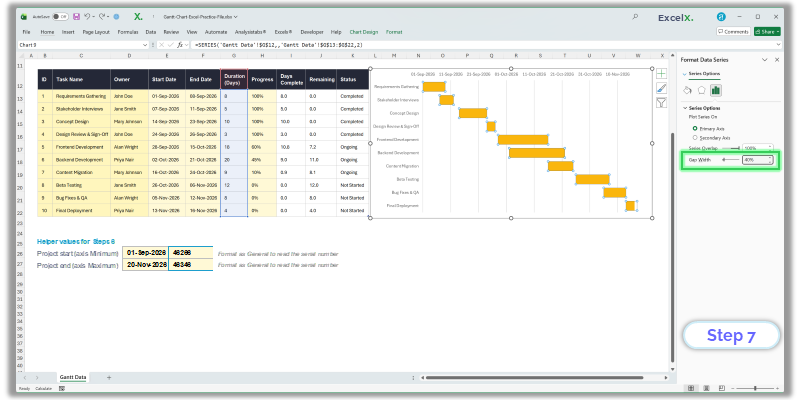
To finalize the presentation:
- Delete the Legend: Click the legend block and press
Delete. Because the start date series is invisible, the legend is unnecessary. - Widen the Bars: Right-click any visible timeline bar and choose Format Data Series. Reduce Gap Width from 150% down to 30% – 40%. This thickens the bars for improved visual readability.
- Enable Vertical Gridlines: Click the chart, select the + (Chart Elements) button, and check Gridlines > Primary Major Vertical so task end dates align clearly with calendar headers.
Step 8: Show Percent Complete with Split Progress Bars
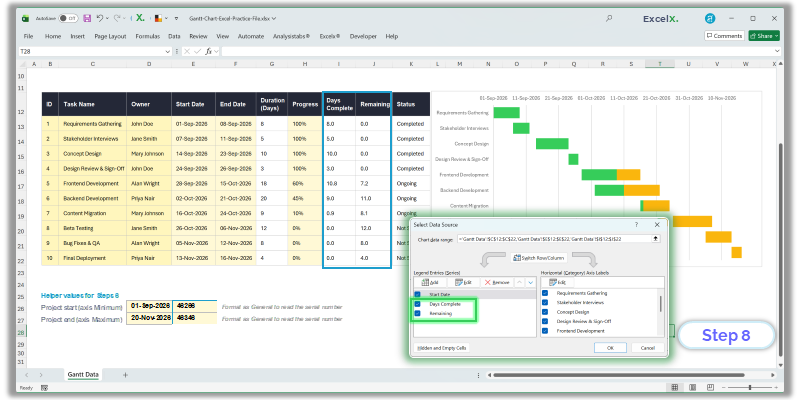
To show progress directly on each bar, divide the Duration series into two distinct stacked segments: Days Complete and Days Remaining.
Add two calculated helper columns to your table:
Days Complete = [@[Duration]] * [@[Progress %]]
Remaining = [@[Duration]] - [@[Days Complete]]| Task | Duration | Progress % | Days Complete | Remaining |
|---|---|---|---|---|
| Requirements Gathering | 8 | 100% | 8.0 | 0.0 |
| Concept Design | 10 | 100% | 10.0 | 0.0 |
| Frontend Development | 18 | 60% | 10.8 | 7.2 |
| Backend Development | 20 | 45% | 9.0 | 11.0 |
| Content Migration | 9 | 10% | 0.9 | 8.1 |
| Beta Testing | 12 | 0% | 0.0 | 12.0 |
To update the chart:
- Right-click the chart and choose Select Data.
- Highlight the existing Duration series and click Remove.
- Click Add: Series name =
Days Complete; Series values = column data. - Click Add: Series name =
Remaining; Series values = column data. - Confirm the top-to-bottom series order: Start Date → Days Complete → Remaining.
- Click OK. Format the Days Complete segment with a darker fill (e.g., solid green or navy), and the Remaining segment with a softer, muted tint.
Stacked Bar Chart vs. Conditional Formatting Timeline
There are two distinct ways to build an Excel Gantt chart:
| Feature / Method | Stacked Bar Chart Method | Conditional Formatting Grid Method |
|---|---|---|
| Visual Format | Floating chart graphic object | Shaded worksheet grid cells |
| Export to Slides / PDF | High-resolution copy-paste into PowerPoint | Requires screenshot or sheet print area setup |
| Adding New Tasks | May require checking axis bounds | Add row; formulas expand automatically |
| Automated “Today” Marker | Requires manual shape placement | Automated column highlighting with =TODAY() |
| Weekend Shading | Not natively supported on bar series | Automated column striping with =WEEKDAY()>5 |
| Best Use Case | Executive summary slides and presentations | Day-to-day active team tracking and updates |
To build a Gantt timeline with conditional formatting:
- List tasks down column A, start dates in column B, and end dates in column C.
- Create calendar date headers across row 4 (e.g., cell D4 =
2026-09-01, E4 ==D4+1). - Select your timeline grid (D5:Z14) and navigate to Home > Conditional Formatting > New Rule.
- Select Use a formula to determine which cells to format and enter:
=AND(D$4>=$B5, D$4<=$C5)Apply a background fill color. As dates are entered or modified, grid cells highlight automatically to form a dynamic timeline.
Special Cases & Advanced Scenarios
Scenario 1: How to Make a Gantt Chart in Excel Without Dates
If you are planning in agile sprints or generic project days rather than calendar dates, replace the Start Date column with integer day offsets (e.g., Day 0, Day 5, Day 12). In Format Axis, set the chart Minimum bound to 0 and Maximum to your total project length in days. The horizontal axis will display clean sequential day numbers instead of calendar months.
Scenario 2: Setting Timeline Views in Weeks, Months, or Quarters
To scale timeline increments along the horizontal date axis:
- Weekly View: Right-click horizontal axis > Format Axis > Axis Options > Units > Major, and set it to
7. - Monthly View: Set Major Unit to
30or31, and format the numbers asmmm yyyy. - Quarterly View: Set Major Unit to
91, and format the date code as"Q"q yyyyusing custom number formatting.
Scenario 3: Adding Task Dependencies & Dynamic End Dates
To link dependent tasks so changing a predecessor automatically shifts subsequent activities:
- Finish-to-Start: Set the dependent task’s Start Date formula to:
=[@[Predecessor End Date]] + 1. - Working Days Only: Use
=WORKDAY([@[Start Date]], [@[Duration]] - 1, Holidays)to recalculate end dates automatically while excluding weekends and company holidays.
Scenario 4: Structuring Subtasks and Work Breakdown Structure (WBS)
To display subtasks nested beneath major project phases:
- Add a Phase column to the left of your Task column. Fill in phase names only on the first row of each group, leaving subtask cells below it blank.
- In Select Data > Horizontal (Category) Axis Labels, select both columns simultaneously. Excel will render a multi-level grouped category axis on the vertical bar margin.
Scenario 5: Highlighting the Critical Path
To highlight tasks on the critical path, add a column calculating total float. Tasks with zero float (meaning any delay pushes the project delivery date) can be highlighted manually: click once on the bar series, click a second time on the specific bar to select just that data point, right-click, choose Format Data Point, and apply a high-visibility red or amber fill.
Scenario 6: Creating a Gantt Chart for Multiple Projects
When tracking multiple concurrent projects, a single stacked bar chart can become cluttered. For multi-stream portfolio schedules, explore our dedicated solutions:
- Multiple Project Tracking Template (.xlsx) — Plan multi-stream team schedules side-by-side.
- Excel Project Plan & Schedule Template — Full task planning with automated WBS hierarchy.
Scenario 7: How to Make a Gantt Chart in Excel on Mac
All core charting tools work identically in Excel for Mac. To access axis formatting quickly without right-clicking, select the horizontal or vertical axis and press Cmd + 1 to open the Format Axis sidebar.
Best Practices for Building and Managing Excel Gantt Charts
To ensure your Excel project schedule remains maintainable, visually clear, and resilient to ongoing date revisions, follow these six professional guidelines:
1. Maintain Balanced Task Granularity
Avoid mixing multi-month summary phases with 2-hour micro-tasks in the same visual timeline. Micro-tasks will plot as microscopic slivers that clutter axis labels, while large milestones distort the time scale. Group detailed checklists inside sub-sheets and plot high-level work packages on the Gantt chart.
2. Always Separate Data Inputs from Calculations
Keep your input fields (Task Name, Start Date, Target Finish Date) distinct from helper calculation columns (Duration, Days Complete, Days Remaining). Never manually hardcode duration numbers when working with two calendar dates; always calculate them with =End - Start + 1 or =NETWORKDAYS() to prevent desynchronized bars.
3. Leverage Native Excel Tables for Automatic Dynamic Ranges
Always format your data table with Ctrl + T before creating the chart object. When data resides in an official Excel Table, inserting a new task row automatically updates series formulas, copies helper column logic downward, and redraws the timeline without requiring manual chart range reselection.
4. Use a Centralized Holiday and Non-Working Day Reference
If your project team observes regional public holidays or planned company shutdowns, store those dates in a dedicated single-column lookup table. Pass that range into WORKDAY or NETWORKDAYS formulas so timeline dates recalculate accurately across all task rows.
5. Keep Color Palettes Semantic and Functional
Limit your chart to 2–3 coordinated hues. Use a primary brand color (such as navy or teal) for normal task durations, a muted pastel shade for remaining work, and reserve saturated accent colors (such as amber or crimson) exclusively for overdue items, blocked tasks, or the critical path.
Step 9: Troubleshooting Common Excel Gantt Chart Problems
Tasks Appear in Reverse Order (Bottom-to-Top)
Right-click the vertical task name axis, click Format Axis, open Axis Options, and check Categories in reverse order.
Dates Display as 5-Digit Numbers on the Axis
Setting axis bounds manually can reset number formats. Open Format Axis > Number, select Date, and apply your preferred format code.
Dates Will Not Plot on the Horizontal Axis
Dates stored as text cannot be plotted chronologically. Select the column, go to Data > Text to Columns, and click Finish to convert them to date serials.
Transparent Fill Hides the Duration Bars Instead of Spacers
The series stacking order is inverted. Open Select Data and verify that Start Date sits above Duration in the series list.
Download the Free Excel Gantt Chart Practice File
Download the practice workbook containing the 10-task schedule, calculated progress formulas, dynamic date-axis bounds, and the formatted Gantt chart:
Practice Exercise
Delete the chart object in the practice file and follow Steps 3 through 8 to rebuild it from scratch using the pre-formatted data table.
Skip the Manual Setup with Our Free Template Library
Our Free Gantt Chart Templates Hub provides pre-built, formula-driven project sheets with dynamic milestone markers, weekly/monthly views, and automated calendar headers—no macros required.
Excel Gantt Chart Solutions & Advanced Techniques
Quick answers and practical formula solutions for common Excel project scheduling, automation, and design questions.
Native Excel Templates & Pre-Built Downloads
Where to find ready-to-use project planners inside Microsoft Excel and online:
- Where is Excel’s built-in Gantt template? Open Excel, go to
File > New, and search for “Gantt”. Microsoft provides a free pre-built “Gantt Project Planner” template using conditional formatting. - 12-Month & Multi-Year Plans: Pre-built templates handle monthly date intervals automatically without manual axis recalibration.
- Agile Sprint Schedulers: Sprint templates replace calendar dates with two-week iteration blocks and backlog task tracking.
Dynamic Dates, Dependencies & Workdays
Automate schedule adjustments using native Excel date functions:
- Skip Weekends & Holidays: Calculate auto-updating finish dates using
=WORKDAY(Start_Date, Duration - 1, Holidays). - Calculate Working Day Duration: Use
=NETWORKDAYS(Start_Date, End_Date, Holidays)instead of simple subtraction. - Link Task Dependencies: For a finish-to-start link, set the successor task’s start cell to
=[@[Predecessor End Date]] + 1. - Dynamic End Dates: Never hardcode finish dates; tie end dates directly to duration formulas so moving a predecessor shifts the entire timeline.
Grid Cell Timelines & Visual Design
Formatting rules for cell-based schedule trackers:
- Shade Cells Based on Date Range: Apply a formula rule across your calendar grid:
=AND(Date_Header>=$Start, Date_Header<=$End). - Dynamic Moving “Today” Line: Add a conditional rule with
=Date_Header = TODAY()and set a prominent border or fill to highlight the current day. - Color-Code by Phase or Owner: Add secondary rules matching owner names (e.g.,
=AND(Date_Header>=$Start, Date_Header<=$End, $Owner="Design")). - Progress Line Overlay: Calculate
$Start + ($Duration * $Progress)to shade completed work in dark green and upcoming work in light gray.
Platforms, Versions & Software Options
Key differences across operating systems and project software:
- Excel for Mac: All chart steps are identical. Use shortcut
Cmd + 1to open the Format Axis sidebar quickly. - Excel 365 vs. Older Versions: Excel 365 and 2024 support dynamic spill arrays (`FILTER`, `LET`) for automated schedule summaries; older versions (2016/2019) rely on standard table formulas.
- Excel vs. Microsoft Project: Excel is ideal for lightweight team tracking, client slides, and custom reporting. MS Project is built for critical-path leveling and enterprise baselines.
- Exporting to Lucidchart / Visio: Copy your clean 3-column table (Task, Start, End) and import it directly into diagramming tools via their built-in Excel connectors.
Frequently Asked Questions About Excel Gantt Charts
Does Microsoft Excel have a built-in native Gantt chart type?
Microsoft Excel does not feature a dedicated one-click “Gantt” option under the Insert Chart menu. However, you can create one using a 2D Stacked Bar Chart by plotting Start Date and Duration, then setting the Start Date series fill to transparent (“No Fill”).
How do I make an Excel Gantt chart with start and end dates?
Because Excel’s stacked bar chart plots task length rather than an end boundary, add a Duration column calculated as =End_Date - Start_Date + 1. Plot the Start Date first, followed by Duration, to generate accurately sized horizontal timeline bars.
Can I create a Gantt chart in Excel without dates?
Yes. You can use numerical day indices (e.g., 0, 5, 10, 15) instead of calendar dates. Excel will display day increments along the axis rather than calendar months.
How do I show progress on an Excel Gantt chart?
Divide the duration series into two calculated columns: Days Complete = Duration * Progress % and Remaining = Duration - Days Complete. Remove the original Duration series and add these two series in its place to render split progress bars.
Can I add milestone markers and a dynamic “Today” vertical line?
In standard Excel bar charts, milestone diamonds and dynamic lines require secondary axis tricks. For automatic “Today” lines and milestone indicators, the conditional formatting grid method is generally faster and easier to maintain.
Excel Gantt Chart vs. Microsoft Project: Which should I use?
Excel is ideal for small-to-medium project timelines, client presentations, and lightweight internal roadmaps where stakeholders do not have specialized software licenses. Microsoft Project is designed for complex enterprise programs requiring critical path recalculation, resource leveling, and cross-project baselines.
Have questions about setting date boundaries or configuring progress formulas? Leave a note below in the comments.
